
The Whatnot CSV Template, Explained: Every Column, the Exact-Match Rule, and Where Uploads Fail
Whatnot's bulk import takes a CSV built on its own template, and the values in five columns have to match its approved list letter for letter. What each column wants, where uploads go (Inventory drafts or a show's temporary listings), the image rules, what happens when you make a mistake, and how Backstage Prep fills the template for you.
Whatnot’s bulk import is the fastest built-in way to list a show, and the reason most uploads fail is not complicated: a value in one column does not match Whatnot’s list exactly. This is what the template wants, column by column, where the file goes, and the rules that catch people.
Everything below is from Whatnot’s own help article on bulk importing products from a CSV, read on September 25, 2026. Whatnot can change the template; the Values tab in your copy is the final word.
Where the template comes from
Whatnot publishes the template as a spreadsheet, with one version per market: United States, Australia and the Netherlands share one, and Coins, the United Kingdom, Germany, France and Belgium, and Japan each have their own. Open it in Google Sheets, make a copy, fill it in, and download the result as a CSV.
CSV import only works on whatnot.com from a desktop or laptop. It is not in the app.
The columns
One row per item. Whatnot asks for:
| Column | What goes in it |
|---|---|
| Category | One of Whatnot’s categories, spelled exactly as the Values tab has it |
| Sub Category | The sub-category under it, exact spelling |
| Title | The listing title buyers see |
| Description | The listing description |
| Quantity | How many you have |
| Type | The sale type, from the approved list |
| Price | The starting price or the Buy It Now price |
| Shipping Profile | One of the profiles listed in the template (such as 0-1 oz or 1 lb), or the exact name of a custom profile you already created in Whatnot. Don’t type your own weight |
| Condition | Required for some categories, and the allowed words depend on the sub-category |
| Offerable | For Buy It Now listings, TRUE to accept offers |
| Hazmat | Not Hazmat, Hazmat - Standard, or Hazmat - Lithium Battery |
| Cost Per Item | What the item cost you. Only you see it |
| SKU | Your own item code. It prints on the packing slip |
| Image URL 1 to 8 | Public https links to your photos, up to eight |
The rule that breaks most uploads
Five columns are checked against an approved list: Category, Sub Category, Type, Condition and Shipping Profile. The values must match the template’s Values tab exactly, including capitalization and punctuation. Whatnot’s own wording is not to modify the spelling, capitalization or formatting of these fields.
Two things about that rule are easy to miss:
- Conditions depend on what you’re selling, usually the sub-category. A trading card and a piece of electronics do not share a condition list, and the words are specific: at the time of writing, cards use wording like “Light Played,” and electronics use terms like “Open-box” with a hyphen. A word that means the same thing but is not on the list will not match.
- Shipping Profile must be one of Whatnot’s profile names, not a weight you type yourself. Pick one of the profiles the template lists, or type the exact name of a custom profile you already set up in Whatnot.
Images
Images are optional at upload. If you include them, each link must use https, be reachable by anyone, and not require a sign-in. Whatnot suggests testing a link in a private browser window: if it loads there, it should work. A draft in Inventory needs at least one image before it can be published, so an image-free import means adding photos to each draft afterward.
Where the file goes
There are two destinations, and they behave differently:
- Inventory. From Seller Hub, open Inventory, choose Import from CSV, pick the file, and import. The rows become draft listings you can edit, publish, duplicate, or add to a show later. Good for items you will sell more than once.
- A show. From Seller Hub, open the show, choose Add, then Create Temporary Listing, then Upload CSV. The rows become temporary listings for that show only. Good for a batch you want live for one night.
When you make a mistake
Whatnot’s CSV help says every import creates new drafts, so uploading a fixed file again can give you the batch twice. Whatnot’s advice: edit the drafts in Inventory, or bulk delete them and upload the corrected file. Bulk editing after the import is also available.
Let the tool fill the template
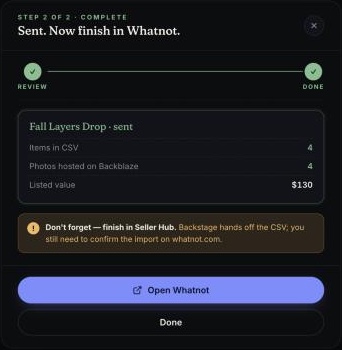
The exact-match rule is a spreadsheet problem, and the way to stop fighting it is to never type those five values. Backstage Prep has Whatnot’s categories, sub-categories, conditions and shipping profiles built in, so you pick from the list instead of spelling it. Drag a folder of photos in, group them into items, bulk-edit a selection, and export. Prep hosts the photos and writes their public links into the image columns, and the export uses the template’s column order. Upload it to your Inventory and the listings appear as drafts, or upload it to a show and they appear as temporary listings for that show.
Next steps
- The workflow around the file: how to list quickly on Whatnot.
- What a bulk listing tool should do: Whatnot bulk listing tool.
- See Backstage Prep, included in Plus and Pro with a 7-day free trial.