
Whatnot Bulk Listing Tool: How to List a Whole Show in Backstage Prep
Step by step: how Whatnot sellers bulk-list a show in Backstage Prep. Start a batch, drop in photos, pick Whatnot's own categories, conditions and shipping profiles, edit a dozen items at once, and export a CSV that uploads to Seller Hub as drafts.
Whatnot’s listing form is fine for one item. For a whole show it’s one field at a time: title, category, sub-category, condition, shipping profile, price, photos, save, next. Thirty times. Backstage Prep turns that into one job: build the whole batch in one place, then hand Whatnot a single file.
Here is exactly how a show gets listed in Prep, start to finish.
Step 1: Start a batch
A batch is one show’s worth of listings. From the Prep dashboard choose New batch and fill in:
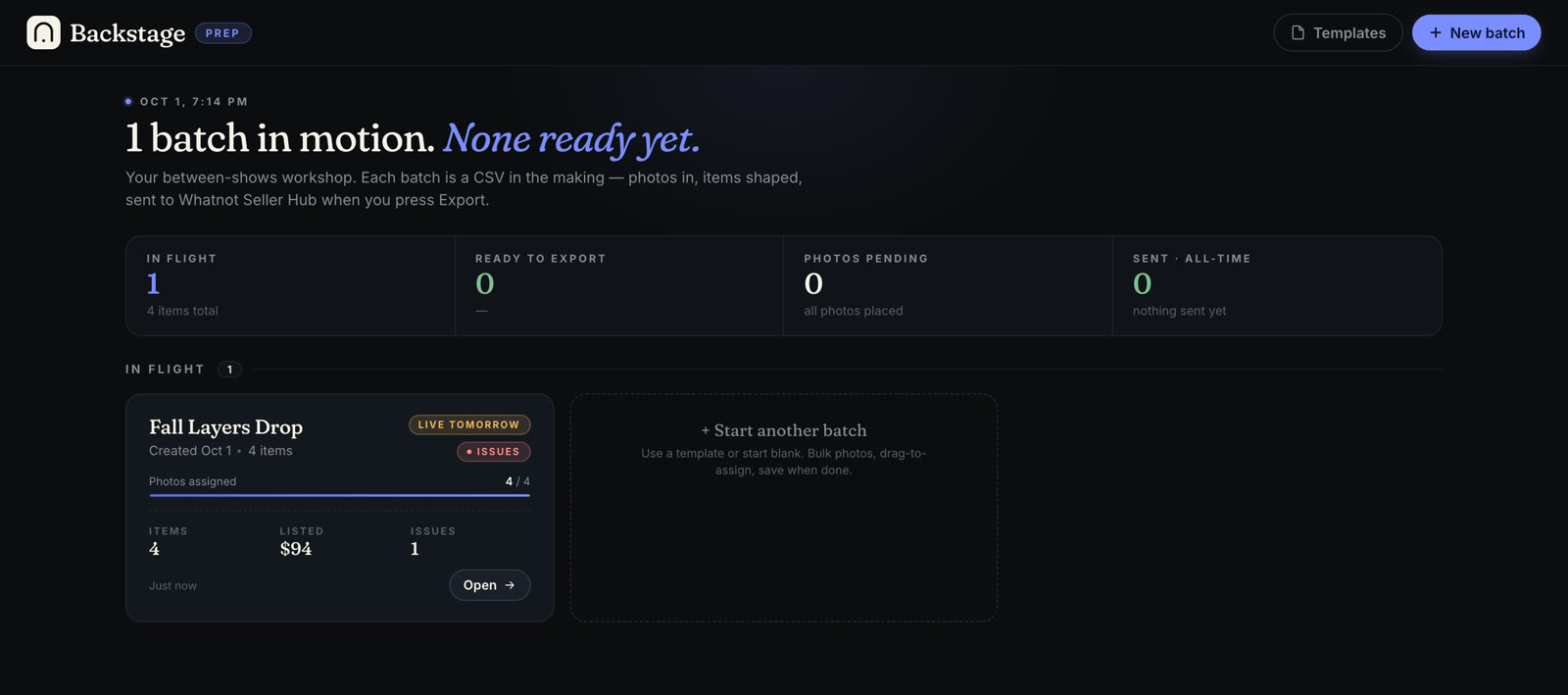
- Batch name, such as “Friday vintage denim”.
- Target show, optional: Today, Tomorrow, This weekend or Next week.
- Item code series, the letters every callout in this batch starts with. Type A and your items become A1, A2, A3. Use a word if you like: a series of MOM gives MOM1, MOM2.
Choose Create batch & open and you’re in the workspace.
Step 2: Get your photos in
Your inventory already exists as photos, so Prep starts there.
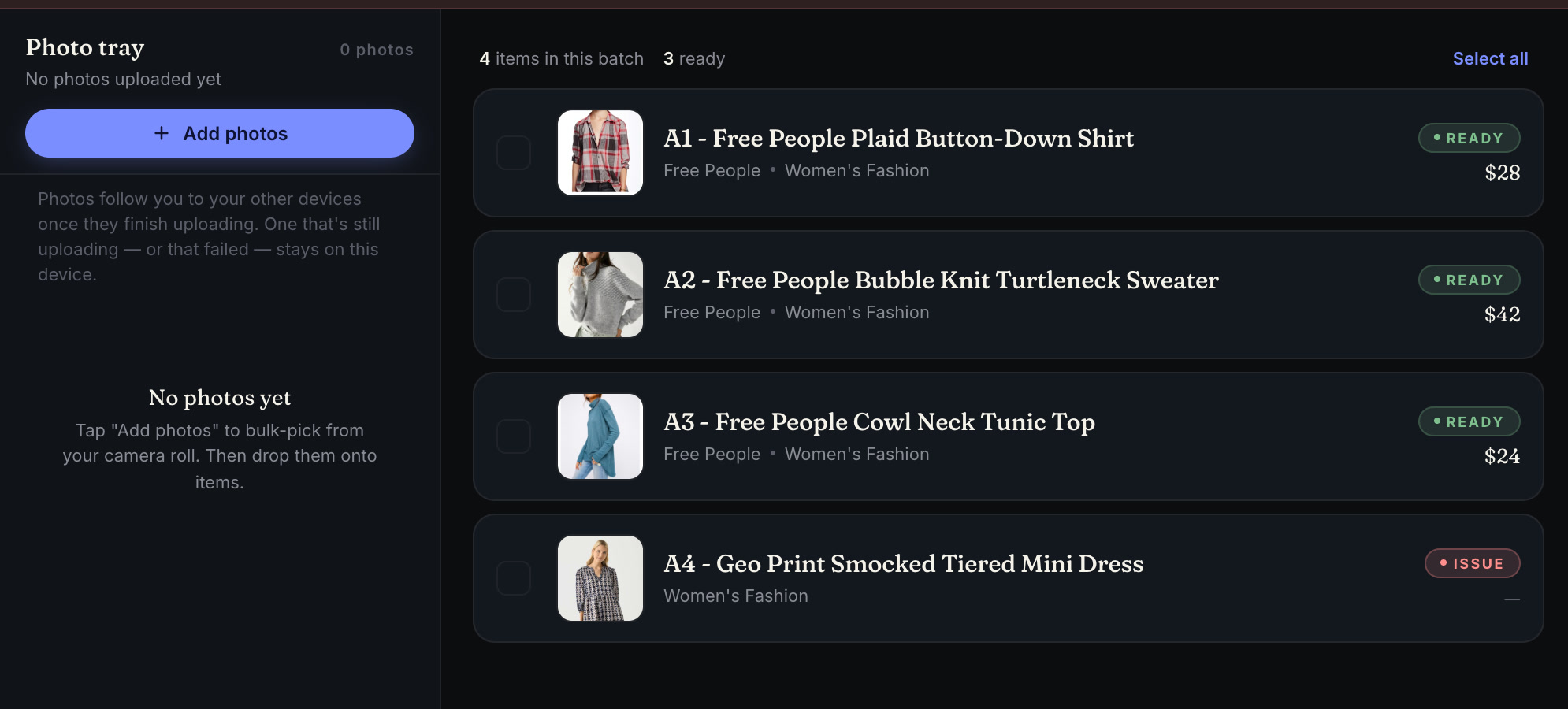
- Drag from a folder. Select the photos in Finder or File Explorer and drop them on the item list. Prep asks whether they’re all the same item or one item per photo. Each new item’s title starts as the photo’s file name, ready to rename.
- Use the photo tray. Choose Add photos to load a pile of shots, then click a photo and click the item it belongs to. This is the easy way to sort several angles of the same piece.
- Add to one item. The + on any item card adds photos to just that item.
Each listing holds up to eight photos. The first is the Cover; tap the star on any photo (Make this the cover) to swap it, or press and drag to reorder.
Photos upload as you add them, so there’s no big upload waiting at the end. Their links are what Whatnot reads from the CSV to put pictures on your listings.
Step 3: Fill in each listing
Every item card has the fields Whatnot’s import needs:
- Callout, filled in for you from the batch series.
- Title (with an 80-character counter) and Description. The description copies your title until you write your own.
- Category, then Sub-category, drilling down as far as Whatnot’s list goes.
- Condition, showing only the options Whatnot allows for that category.
- Sale type: Auction, Buy it Now or Giveaway.
- Price and Quantity.
- Shipping profile, picked from Whatnot’s list of profiles.
- Hazmat, set for each item: Not Hazmat, Hazmat - Standard, or Hazmat - Lithium Battery.
You pick from Whatnot’s own lists instead of typing. That matters: Whatnot requires category, sub-category, sale type, condition and shipping profile to match its template exactly.
Step 4: Edit a dozen at once
Most shows are runs of similar things: twelve pairs of jeans, twenty packs of cards. Don’t fill those in one by one.
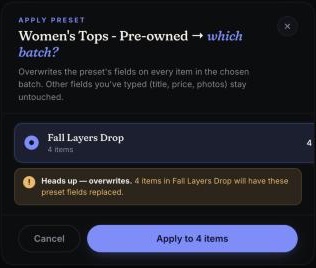
- Tick each item, or choose Select all.
- In the bar that appears, choose Edit.
- Every field starts at Leave unchanged. Set only what you want (category, condition, sale type, shipping profile, price or quantity) and apply it to every selected item.
If you list the same kind of thing every week, save an item’s settings with Save as preset. Next time, apply the preset to a single item or to a whole selection with Apply preset. Blank fields in a preset leave the item alone.
Step 5: Fix what Prep flags
Prep checks every item against Whatnot’s rules as you go: required fields filled, values on Whatnot’s lists, a price above zero, no more than eight photos. Anything missing shows as fields need attention on the item, and the workspace tells you how many items need a look before export.
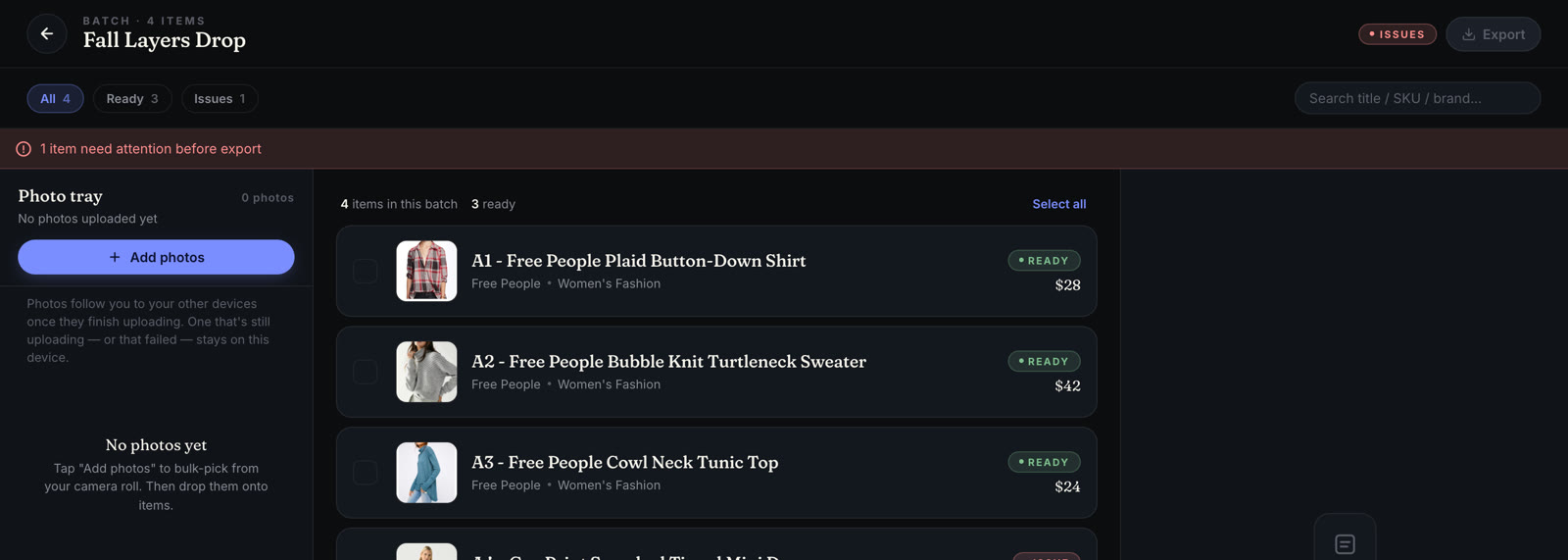
You can’t export a file Whatnot will reject for a missing required field. Fix those items first.
Step 6: Export the CSV
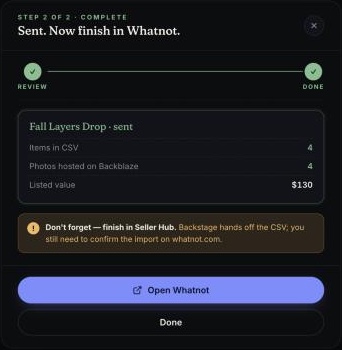
Choose Export. Prep shows a last review, Ready to send?, with the number of items, how many photos are hosted, any tray photos you never assigned, and the total listed value. Then choose Share CSV and save the file.
The file follows Whatnot’s bulk-import template: category, sub-category, title, description, quantity, sale type, price, shipping profile, offerable, hazmat, condition, cost per item, SKU and up to eight image links. Each title starts with its callout, for example “A7 - Levi’s 501 Jeans 32x30”.
Step 7: Upload it in Seller Hub
Whatnot’s bulk upload is on whatnot.com, so this last step happens on a computer. Prep’s Open Whatnot button takes you to your Seller Hub inventory. Upload the CSV there and your listings arrive as drafts, photos attached, ready to review, publish and add to your show. Giveaways can only be created inside a show, so upload a file with giveaways to the show itself.
The Whatnot CSV template guide covers every column and what to do if Whatnot rejects a row.
Where Prep runs
- In Chrome, as a full-screen workspace inside the Backstage extension. This is the only version with drag-from-a-folder.
- In your Backstage account on the web, under Prep in the portal menu: same batches, callouts, pick lists, bulk edit and CSV export, with photos added through the file picker.
- In the Backstage iPad app, so you can build listings on the tablet you run the show from.
Wherever you build the batch, the Seller Hub upload itself is on whatnot.com.
When you don’t need Prep
Plenty of sellers never pre-list: one “random pull” listing with a quantity, and items numbered as they sell. Prep is for the other kind of show, or the other half of a mixed one, where each item is its own listing with its own photo and price. If you never pre-list, the part of Backstage you want is live sales capture, not Prep.
Prep next to the alternatives
| Whatnot’s form, one at a time | Filling in Whatnot’s CSV template by hand | Backstage Prep | |
|---|---|---|---|
| Start from a folder of photos | No | No | Yes, in Chrome |
| Category, condition and shipping picked from Whatnot’s lists | Yes | Yes, from the template’s dropdowns | Yes |
| Edit many listings at once | Some bulk actions in Inventory | Yes, in a spreadsheet | Yes |
| Hosts photos and writes the image links | Photos added per listing | No, you need your own links | Yes |
| Checks the file before you upload | Not applicable | Partly: dropdowns catch misspelled values, not missing fields | Yes |
| Callout numbers in titles | No | Only if you type them | Automatic |
Next steps
- Every column, explained: the Whatnot CSV template.
- The bigger picture: how to list quickly on Whatnot.
- See Backstage Prep, included in Plus and Pro with a 7-day free trial.