The Whatnot Moderator Toolkit: Built-In Tools, Setup and a Show-Night Checklist
Everything a Whatnot mod works with during a live show: the tools Whatnot builds in, what only the seller can do, how to set up before the show, and a checklist for show night. Plus the free tools that fill the gaps.
A good Whatnot mod does three jobs at once: keeps the chat safe, keeps it moving, and makes sure nobody who deserves a thank-you gets missed. Here is everything you work with, what Whatnot gives you, what stays with the seller, and a checklist for show night.
What Whatnot gives moderators
A seller nominates you as a mod for their shows. Once you are, Whatnot gives you:
- Four chat commands.
/announcehighlights a message,/hideposts a message only the seller and mods can see,/slowsets a cooldown between chat messages, and/raid @usernamesends viewers to another live show when this one ends. Mod commands explained has examples of each. - Remove from show. Tap a username and choose Remove from show (on the web it’s Ban from live). They can’t rejoin, chat or bid for the rest of that show, and can’t be added back. It isn’t a Whatnot-wide ban.
- Muted messages. Chat muted by Whatnot or by the seller’s muted words is hidden from viewers, but mods can see it, so you can judge whether it needs action.
- The viewer list. Tap the viewer count to see who’s watching, plus an Activity tab of raids, new followers, tips, auction wins and purchases.
- Chat filters. Narrow the chat to Questions, Buyers, Mods or Muted. Questions are also highlighted in yellow.
What stays with the seller
- Pinning a listing. Only the seller can pin.
- Show settings like muted words, verified buyers only, and turning off pre-bids.
- Show stats, the running sales and order totals, are for hosts and co-hosts.
- Giveaways, auctions and the show itself. You can hype them; the seller runs them.
Knowing the line saves time mid-show: if something needs pinning or a setting changed, use /hide to tell the seller.
Setting up before the show
- Get added. The seller adds you when they schedule the show, or during the show from your username in chat (“Allow to Moderate”).
- Agree the ground rules with the seller: what gets a warning, what gets a removal, how they want giveaways hyped, and who the raid goes to at the end.
- Know the lineup. Skim the show’s listings so you can answer size and condition questions without asking.
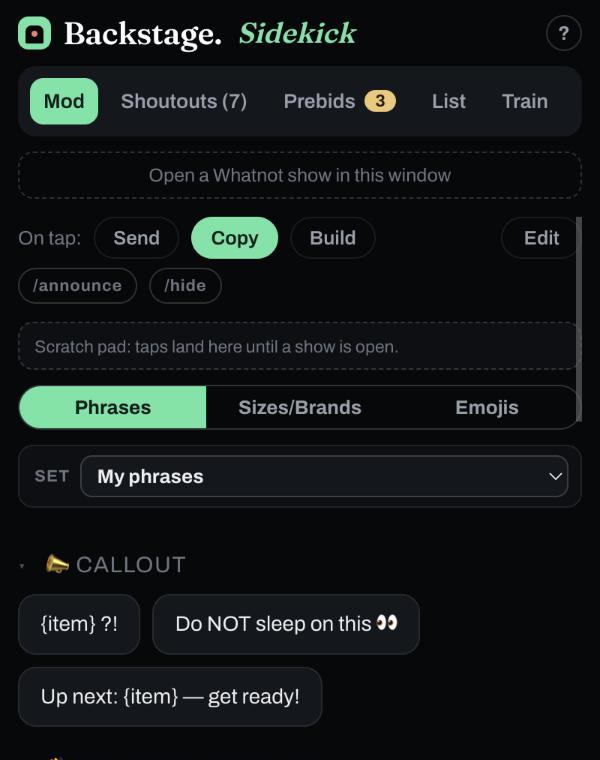
- Open your tools. Whatnot in one place, and if you use a helper like Sidekick, have it open beside the show before it starts.
- Load your phrases. Welcome lines, follow and bookmark reminders, giveaway hype, and the size callouts this seller’s category uses. If you mod for more than one seller, keep a separate phrase set for each.
Show-night checklist
As the show starts
- Welcome people by @username as they arrive.
- Remind viewers to follow and bookmark.
During the show
- Answer questions first; they’re buyers deciding.
- Watch the Questions and Buyers filters when chat gets busy.
- Use
/slowif chat is moving too fast to read, and check with the seller on the setting. - Warn before you remove. Whatnot’s guidelines ask mods to remove someone only when their actions warrant it or the seller asks, never for disagreeing.
- Use
/hidefor anything the seller needs to know but viewers don’t. - Keep phrases varied. Whatnot asks mods to avoid spamming and repetitive messages.
The moments that matter
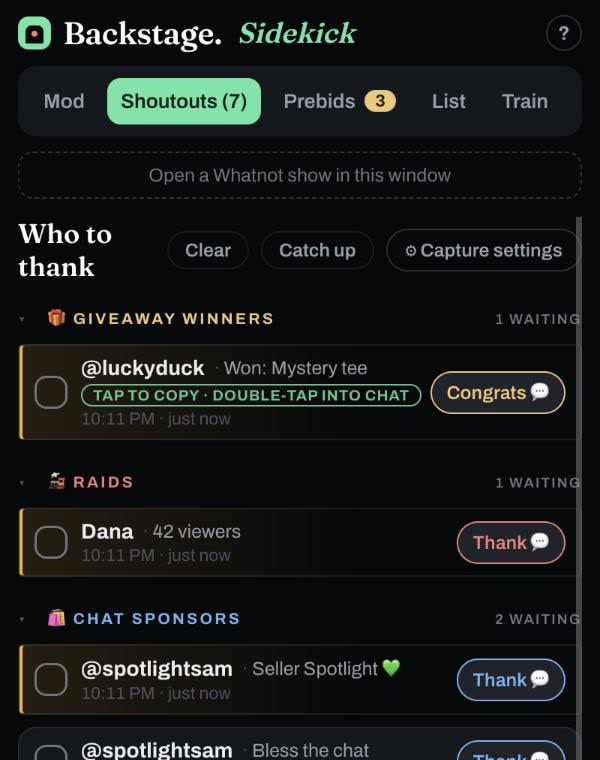
- Raids: thank the raider by name while their viewers are still arriving.
- Tips: thank the tipper by name.
- Giveaway winners: congratulate them. Don’t ask whether they’re present; Whatnot’s rules say sellers can’t, and winners who left the show are already removed from the draw.
- Sponsors (viewers who buy a giveaway for the chat): shout them out when their giveaway runs.
- First-time buyers: a quick welcome goes a long way.
At the end
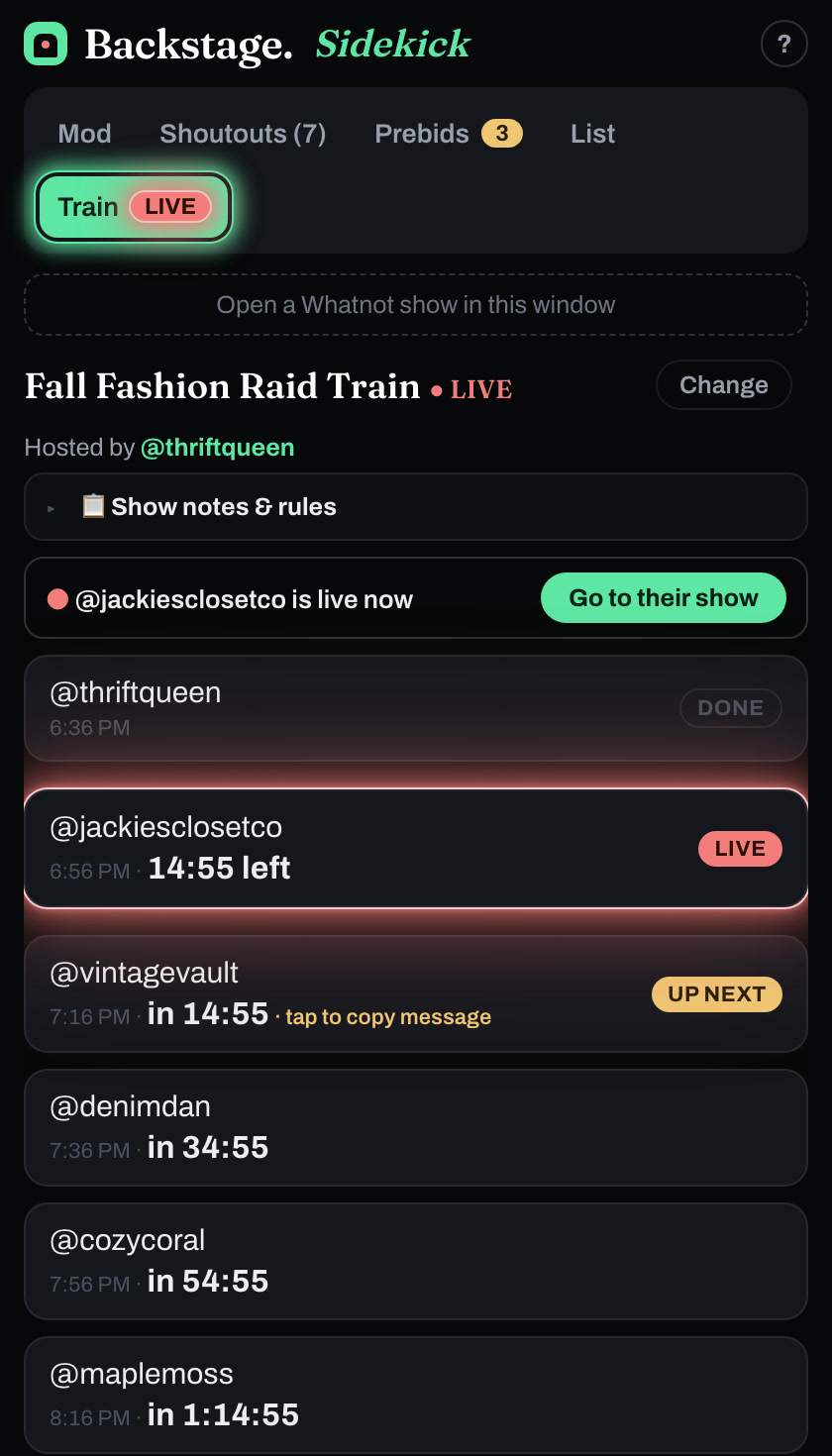
- Confirm the raid target with the seller before the last item. On a raid train, Sidekick’s Train tab shows who’s up next.
- Check that nobody is still owed a thank-you.
Free tools that fill the gaps
Whatnot’s tools cover moderation. What they don’t do is keep a running list of who you still need to thank, or save you typing the same welcome for the fiftieth time. That’s what Backstage Sidekick is for, free:
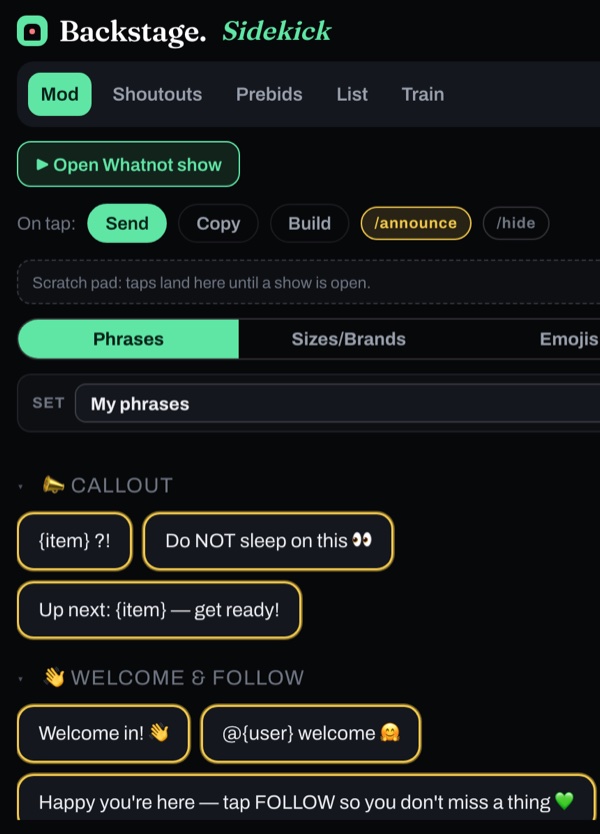
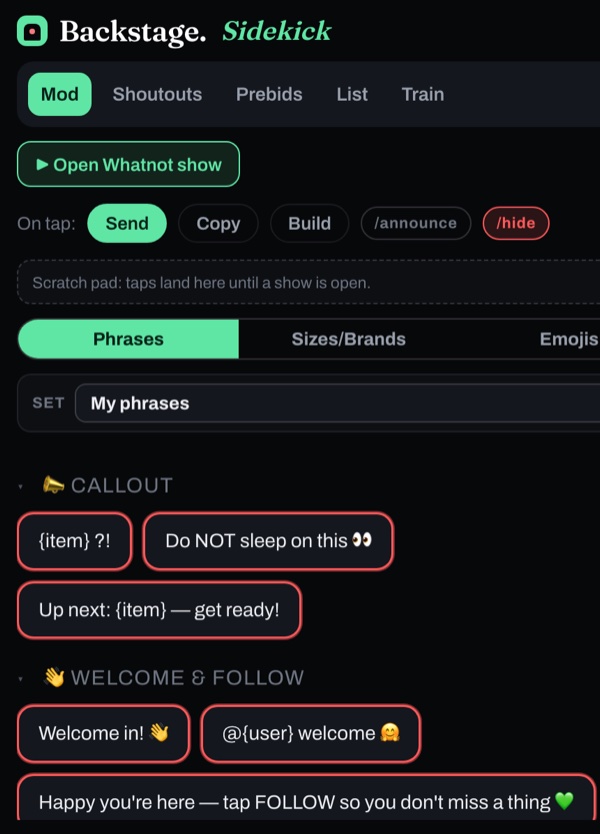
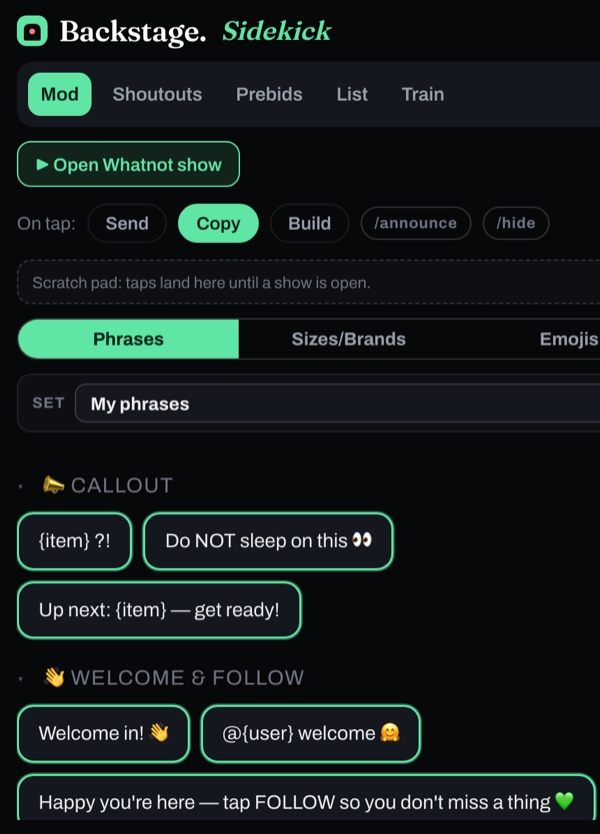
- A phrase deck: ready-to-post lines, all editable, with emoji. A tap sends the phrase straight to chat, or switch to Copy and paste it yourself. Turn on /announce or /hide to post it as a highlighted message or one only the seller and mods see. Every phrase is outlined in the mode’s color so you always know what a tap will do: yellow goes to chat, red goes to chat hidden, green copies. Build mode collects several taps into one message.
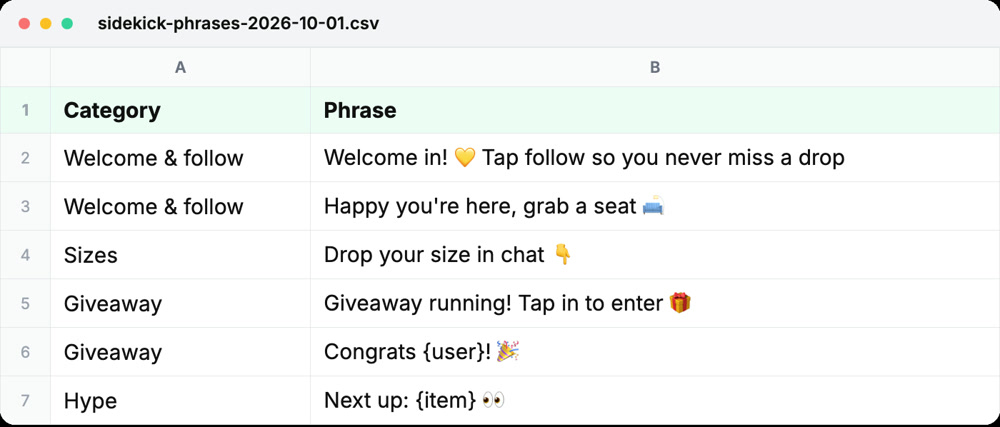
- Phrase sets: a separate deck for each seller you mod for, switched with one tap. Export a set to a spreadsheet, edit it, and import it back.
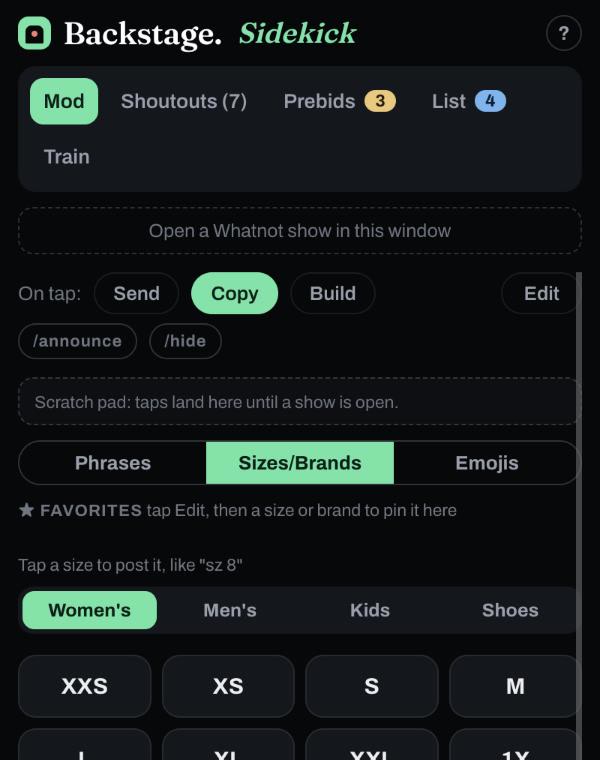
- Sizes and brands: women’s, men’s and kids’ sizes on chips, plus the brands you sell, with your favorites first.
- A who-to-thank checklist: raids, tips, sponsors and giveaway winners in the order they arrived, with a clock showing who’s been waiting. Check each one off.
- Catch up: open it mid-show and it pulls in everyone already owed a shout-out.
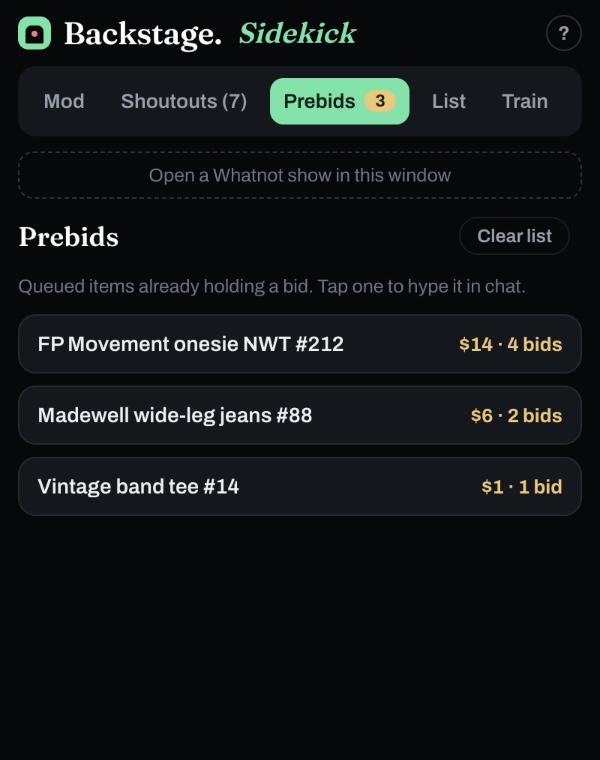
- A prebid radar: the listings already getting bids, one tap from a hype line.
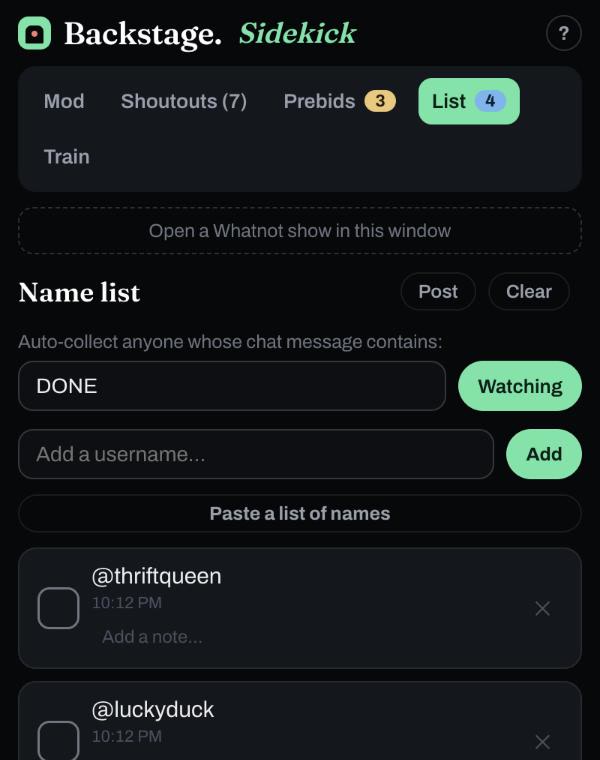
- A name list: collects everyone who types a watch word, like DONE.
- Raid trains: a Train tab with the live running order and countdown for a Raid Train Express train, plus one-tap handoff lines. More below.
- Show views on iPhone: Sidekick opens your show above its panel, with three views of it. Phone is Whatnot’s normal layout, Video zooms in on just the video, and Chat zooms in on just the chat, big enough to read and type in. The padlock keeps the zoom where it is; unlock it, pinch to the spot you want and lock it there. Make the Sidekick panel bigger or smaller, or hide it to see the whole show; while it’s tucked away it shows how many people are still waiting on a thank-you. On iPad, Sidekick sits beside the show instead.
Modding a raid train
Enter the train’s Raid Train Express tracking number on Sidekick’s Train tab and it shows the running order live: who’s on now, who’s up next and a countdown to every handoff, with a Go to their show button and the train’s notes and rules. A Raid train category in the phrase deck adds one-tap lines to welcome the show, hype the shop and giveaway, thank the host and repost the lineup. Raid Train Express is our partner and a free raid train scheduler: find a train to join on the Raid Train Express schedule, or build your own there. For questions about a specific train, see the Raid Train Express help center. The full walkthrough: Sidekick with Raid Train Express.
What a tap will do, at a glance
Every phrase is outlined in the color of the mode you’re in, so you never post something the wrong way by accident.
It runs as a Chrome side panel or as a free iPhone and iPad app.
Next steps
- The commands, with examples: Whatnot mod commands explained.
- The people side: how to be a good Whatnot moderator.
- Get the free helper: Backstage Sidekick.