
Can You Sell on Whatnot Without a Printer? What Whatnot Requires, and What You Can Skip
Yes, you can sell on Whatnot without a label printer, and Backstage keeps your show sorted by buyer without one. What you can't do is ship without printing something: Whatnot's prepaid shipping labels are PDFs, letter size for a regular printer or 4 by 6 for a thermal one, and there's no QR-code option at the post office. Bin labels during the show are optional. Here's exactly what has to be printed, what doesn't, how to get through your first shows on the printer you already own, and when a thermal printer starts paying for itself.
Yes, you can sell on Whatnot without a label printer. No, you can’t ship without printing something. Backstage keeps your show sorted by buyer either way. Whatnot’s shipping labels are prepaid PDFs, and the only way to get one onto a box is to print it: on an ordinary printer at letter size, or on a thermal printer at 4 by 6. There’s no QR code to scan at the post office. Everything else people print during a show is a convenience, and you can skip it until it pays for itself. Here’s what’s required, what isn’t, and how sellers get through their first shows on the printer already sitting in the house. Whatnot’s rules are from its help center, read September 29, 2026.
What has to be printed
The shipping label. After a sale, the label is generated from the Shipments page in Seller Hub. Shipping was charged to the buyer at checkout, so the label is already paid for; you download it, print it, and stick it on. Whatnot gives you two formats:
- 8.5 by 11 inches for a standard home or office printer. This is the default.
- 4 by 6 inches for a thermal label printer.
Whatnot’s own answer to “can I still ship if I don’t have a printer” is that you need access to one, and it suggests a print shop or shipping center, borrowing a printer, or buying a thermal printer if you’ll ship regularly. It also says flat out that QR-code labels aren’t supported, so the post-office kiosk is out.
Whatnot’s label, not yours. Unless you’re approved for Bring Your Own Label, which is limited to cases like shipping from France or Germany or selling in the Wholesale category, you use the Whatnot-generated label. A label from another service can stop tracking from updating and delay your payout.
A packing slip is optional. It prints in the same size as the label and helps buyers check their order.
What doesn’t have to be printed
Bin labels during the show. A lot of sellers print a small label the second an item sells so it can be tagged to the buyer and dropped in a bin. It’s a real time-saver on a busy night, but it’s not a Whatnot requirement. A marker and painter’s tape, sticky notes, numbered bags or numbered hangers do the same job. What matters is that each buyer’s stuff ends up together, and that you can match the pile to the orders when the show ends. That matching is the part Backstage does for you, printer or not: every sale is tagged to its buyer and bin as it happens, so the pile and the orders already agree.
Anything during the show. Shipping labels are normally an after-show job: Whatnot groups each buyer’s wins into shipments, and you generate the labels in one batch once you’re done. You can do that anywhere there’s a printer.
Your first shows on the printer you already have
Sellers on Reddit describe the same path over and over: print the letter-size label, cut it out, tape it flat with the barcode uncovered, ship. It works. A few things make it smoother:
- Generate labels in bulk from a computer. On whatnot.com, the Shipments page lets you select every shipment that needs a label and export all the labels, and optionally all the packing slips, as one PDF. The phone app does one at a time.
- Set your defaults before the first label. In Shipments, open the sidebar and check Default Label Options: label format, packing slip format and return address. The return address can’t be changed once a label exists.
- Fix the size once, not every night. If you move to a thermal printer and the labels come out tiny, the format is still set to 8.5 by 11. Change it to 4 by 6 in the same sidebar. Reverse-order pages are a printer setting: page order Normal or Front to Back.
- Ship within two business days. That’s Whatnot’s policy however you printed the label, and it’s one of the conditions for keeping Early Payout once you have it.
When a thermal printer starts paying for itself
A thermal printer uses no ink, prints a label in a second or two, and spits out a 4 by 6 that goes straight onto the box. It earns its keep the night cutting and taping letter-size labels takes longer than the packing. For a lot of sellers that’s somewhere between ten and thirty orders a show. It also unlocks the other kind of label: the bin label that prints itself as each item sells, so the show ends already sorted by buyer.
A budget Bluetooth printer like the Rongta RP425 prints Whatnot’s 4 by 6 shipping labels and pairs with the Backstage iPad app; on a computer, a Rollo is the workhorse. Feed either one a roll of 4 by 6 labels or a fan-fold stack. Printer and label links on this page are affiliate links: as an Amazon Associate, Backstage earns from qualifying purchases.
Where Backstage fits, printer or not
Backstage doesn’t print shipping labels; those always come from Seller Hub. What it does is make the show end packed, whether or not you own a label printer.
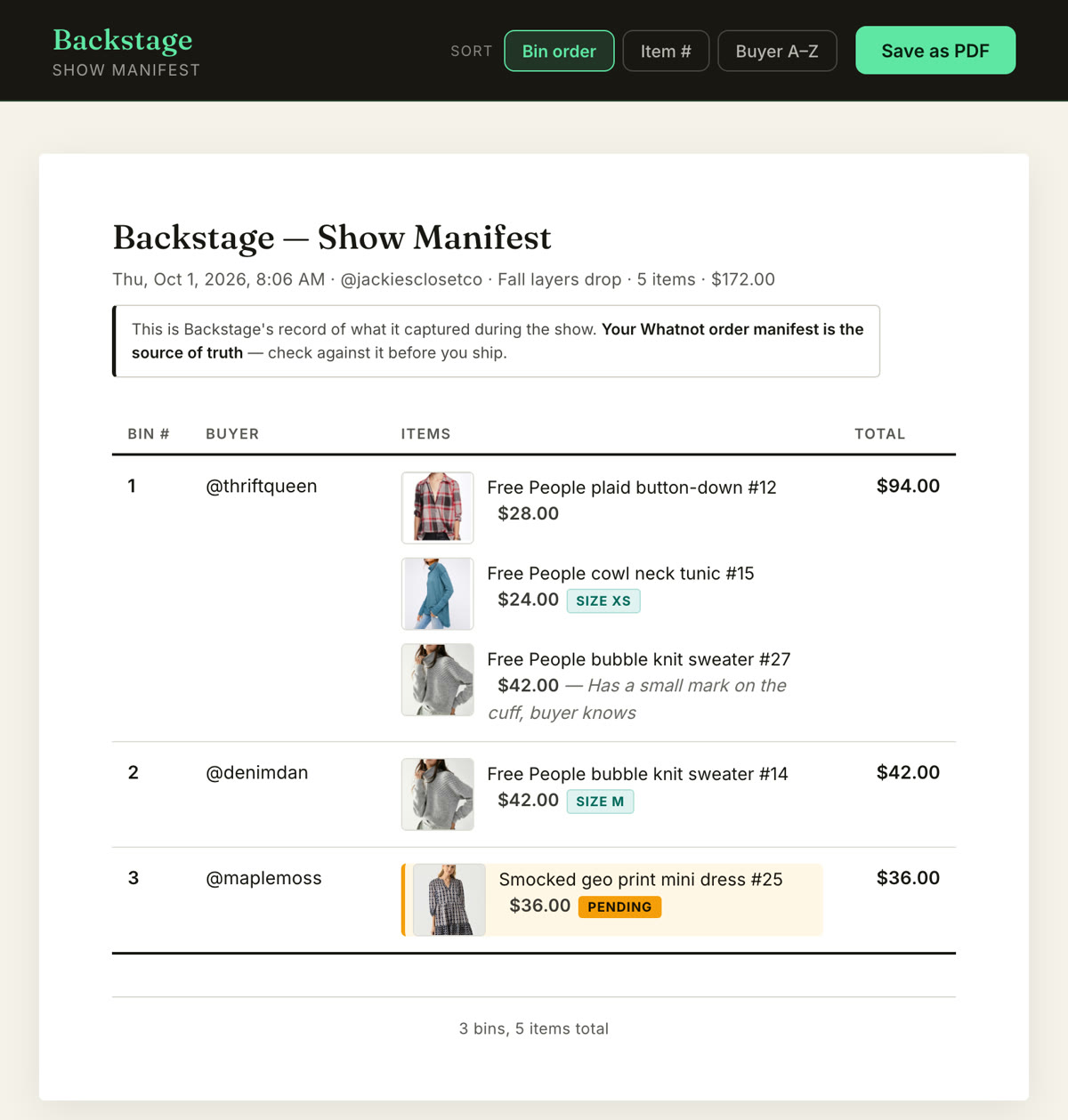
Without a label printer. Backstage Lite watches your show and catches every sale by buyer, with a bin number handed out on each buyer’s first win. When you end the show it gives you a manifest and bin-label PDFs in five formats: plain letter paper, Avery 5160 and 5163 sheets, and 4 by 6 and 2 by 1 thermal stock. Print the bin labels on your regular printer, or skip them and write the numbers by hand or use a roll of numbered stickers; the manifest still tells you which bin holds what, and whoever packs for you can follow the live board from a link. The iPad app works the same way with no printer anywhere.
With one. The Plus plan adds automatic printing: a bin label prints the second an item sells, from a native iPad app to a Bluetooth thermal printer, or from Chrome on a Mac or Windows computer to any label printer installed there. The label printing guide covers what prints and which printers we’ve tested.
Either way, the shipping label is the one thing you’ll always print, and by the time you get to it the pile is already sorted.
| Whatnot alone | Backstage, no label printer | Backstage with a thermal printer | |
|---|---|---|---|
| Shipping labels | Print from Seller Hub | Print from Seller Hub | Print from Seller Hub |
| Who bought what | Orders list in Seller Hub | Every sale captured live, by buyer, with a bin number | Same |
| Sorting items during the show | By hand | Bin number assigned for you; label by hand | Bin label prints as each item sells |
| What you get at End Show | Orders and shipments | Manifest matched to your bins, bin-label PDFs for any printer | Same, with labels already on the items |
| What each item earned after fees | Per order in Seller Hub | On the manifest, per item | Same |
Next steps
- Every job in one place: Whatnot seller tools, from sales capture and bins to labels and packing.
- What to buy, by job: the Whatnot seller toolkit, from label printers and bins to mailers and lights.
- Keep buyers sorted without printing anything: the Whatnot bin system.
- Ready for labels that print themselves: Whatnot label printing software on iPad, Mac and Windows.
- What happens after the label is generated: Whatnot payouts explained.