
The Whatnot Seller Toolkit for 2026: Every Tool You Need, by Job
Every tool a Whatnot seller uses, sorted by the job it does: the free tools Whatnot already gives you, the gear and apps Whatnot's own team recommends, and where a live-show tool like Backstage fits. From the camera and lights to listing, running the show, mods, shipping and the money, with a starter setup for each stage. Checked against Whatnot's help center and Seller Academy, September 30, 2026.
The short answer: Whatnot already gives you most of what you need to sell, for free. What you add is gear for the camera, a way to list faster, and something to keep track of who bought what while you’re busy selling. This guide goes job by job, names the tools sellers actually use for each one, and says which parts are free, which need a computer, and where Backstage makes the night easier.
Everything about Whatnot’s own features here comes from Whatnot’s help center and its Seller Academy production guide, as of September 30, 2026. Some product links in this guide are affiliate links: as an Amazon Associate, Backstage earns from qualifying purchases.
Start with what Whatnot gives you free
Before you buy anything, use what’s already in the app. A lot of it is easy to miss.
| Job | Whatnot’s free tool | Where to find it |
|---|---|---|
| Practice without an audience | Rehearsal Mode, or a private show | Seller Hub in the app (new sellers may not see it until after their first show) |
| Run the show without touching the camera | Two-device hosting | Start on one device, join the same show from another |
| A second camera angle | Facecam and Camera Zoom (Seller Tools) | iOS and web; switch Seller Tools on in Preferences first |
| Stream from a computer | OBS, connected through Show Tools | whatnot.com in Chrome |
| Reach viewers on other platforms | Multicast to YouTube, Facebook and Twitch | iOS or desktop, when you start the show |
| Show your screen | Screen sharing | whatnot.com, even if you host from your phone |
| List a batch at once | CSV bulk import | whatnot.com on a computer only |
| Shipping labels | Shipments page | Seller Hub; batch-print on whatnot.com |
| Your numbers | Seller Analytics, Seller Statements, the Ledger | Seller Hub on whatnot.com |
| Labels as items sell | Sorting Labels | Beta, selected pilot sellers, needs a computer running Whatnot Tray |
Camera, light and sound
Camera: the phone you already have. Whatnot’s production team says the best product camera, even for sellers who stream with OBS, is the phone already in your pocket, and that webcams don’t match its quality. Put it on a stand or a desk clamp with an arm so it doesn’t move. If you stand to sell, or want an overhead shot of a table, a tall magnetic phone tripod snaps a MagSafe phone on and off in seconds.
Light: two lights beat one ring light. Whatnot’s Seller Academy calls a two-point lighting setup your first real upgrade. Two lights, one on each side, balance shadows and cut glare (a two-light kit with stands is the easy way to get both at once); a single ring light looks flat and bounces off shiny things like card sleeves and slabs. Desktop sellers (cards, coins, toys) can use small desk-mounted panel lights. Fashion, bags and liquidation sellers standing further back need stronger lights, Whatnot suggests 100 watts as a minimum, on stands. Just starting out? A ring light with its own stand and phone mount is the low-cost way to get light on your items for your first shows; add a second light when you’re ready for the upgrade.
Sound: a clip-on mic. Wireless lav mics are the easy upgrade, especially if you stand back from the camera or there are two of you on air. If you sit at a desk, a USB audio interface with an XLR mic also works, and lets you mix in background music; a mic and streaming mixer bundle gets you both in one box.
A second angle. Whatnot’s Facecam turns on your phone’s front and back cameras at once, and Camera Zoom switches to an ultra-wide view on phones that support 0.5x. You switch both on under Seller Tools in the app’s Preferences.
Reading chat from across the room. If you stand back from the camera to show clothing or bags, a phone screen is too small to read. A big screen on wheels, like the Samsung 32 inch monitor on a rolling stand, connected to your laptop, puts the show and chat where you can see them while you sell.
Streaming from a computer: OBS and Multicast
If you want real cameras, overlays or scenes, Whatnot supports OBS, the free streaming software. A few things to know before you try it:
- You connect OBS from the Show Tools page on whatnot.com, and start the show from there, not from the live page.
- Google Chrome is the only supported browser for that connection.
- The canvas is vertical, 1080 by 1920. An old horizontal scene has to be resized.
- Whatnot strongly recommends wired internet. Its streaming method expects a steady, strong connection, and Wi-Fi is the usual cause of failures. Most laptops no longer have a network port; a USB-C to ethernet adapter plugs a network cable straight in.
- To use your phone as an OBS camera, Whatnot’s guide points to phone-camera apps like Camo, OBS Camera and DroidCam.
- For a face camera or a second angle, add a webcam such as a 4K autofocus webcam. Whatnot’s team keeps the phone on the products and uses webcams for the face cam.
- On a laptop, a portable monitor gives you a second screen: OBS on one, your show and chat on the other.
Multicast sends your Whatnot stream to YouTube Live, Facebook Live or Twitch at the same time. It works from iOS or desktop, not Android or private shows, and it doesn’t combine the chats, so Whatnot suggests a second device to watch the other platforms’ chat.
Listing before the show
Whatnot’s CSV import is the bulk option: download the template for your country, fill it in, and upload it on whatnot.com from a computer (not the app). The fussy parts are that category, condition and shipping profile values must match the template’s list exactly, and image links must be public https addresses. Whatnot suggests Google Sheets for editing the template and image hosts like ImgBB or Imgur.
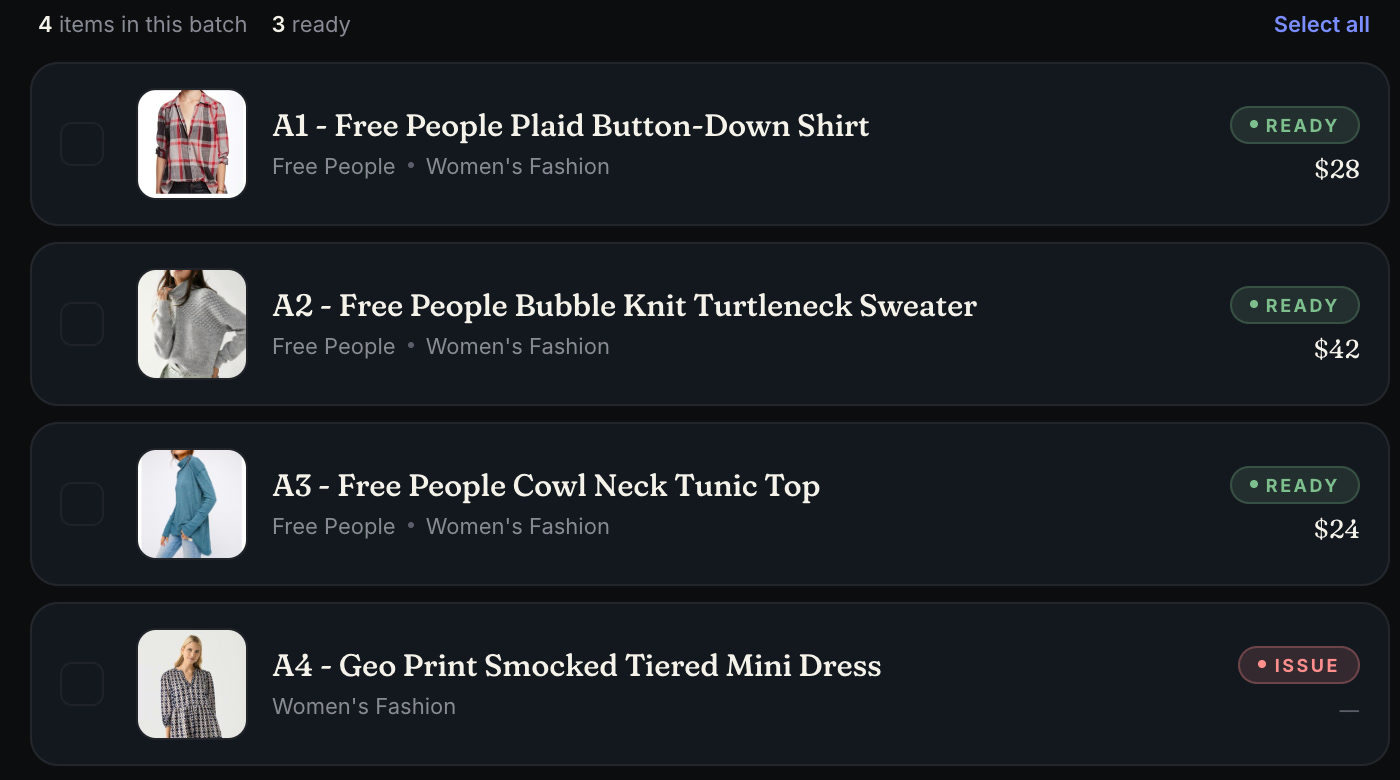
Backstage Prep does the same job from your phone or iPad: snap a photo and the lookup fills in the details, bulk-edit price, category and shipping profile across the batch, and export a CSV that already matches Whatnot’s template. More on the CSV itself in the Whatnot CSV template, explained.
Measurements for clothing. Buyers often ask for a PTP, the pit-to-pit measurement across the chest from armpit to armpit, before they bid, and for pants they’ll ask for waist and inseam too. Keep a soft tape measure at your listing table and on set, and put the numbers in the listing so the question is answered before it’s asked.
Thumbnails and promo posts. A free design app like Canva is what most sellers use for show thumbnails and social posts. Whatnot recommends a vertical thumbnail.
Running the show: sales, bins and labels
This is the job Whatnot’s app leaves to you. During a show you see who won what in the feed, but your table is a pile, and after the show you’re matching items to orders by memory or video receipts.
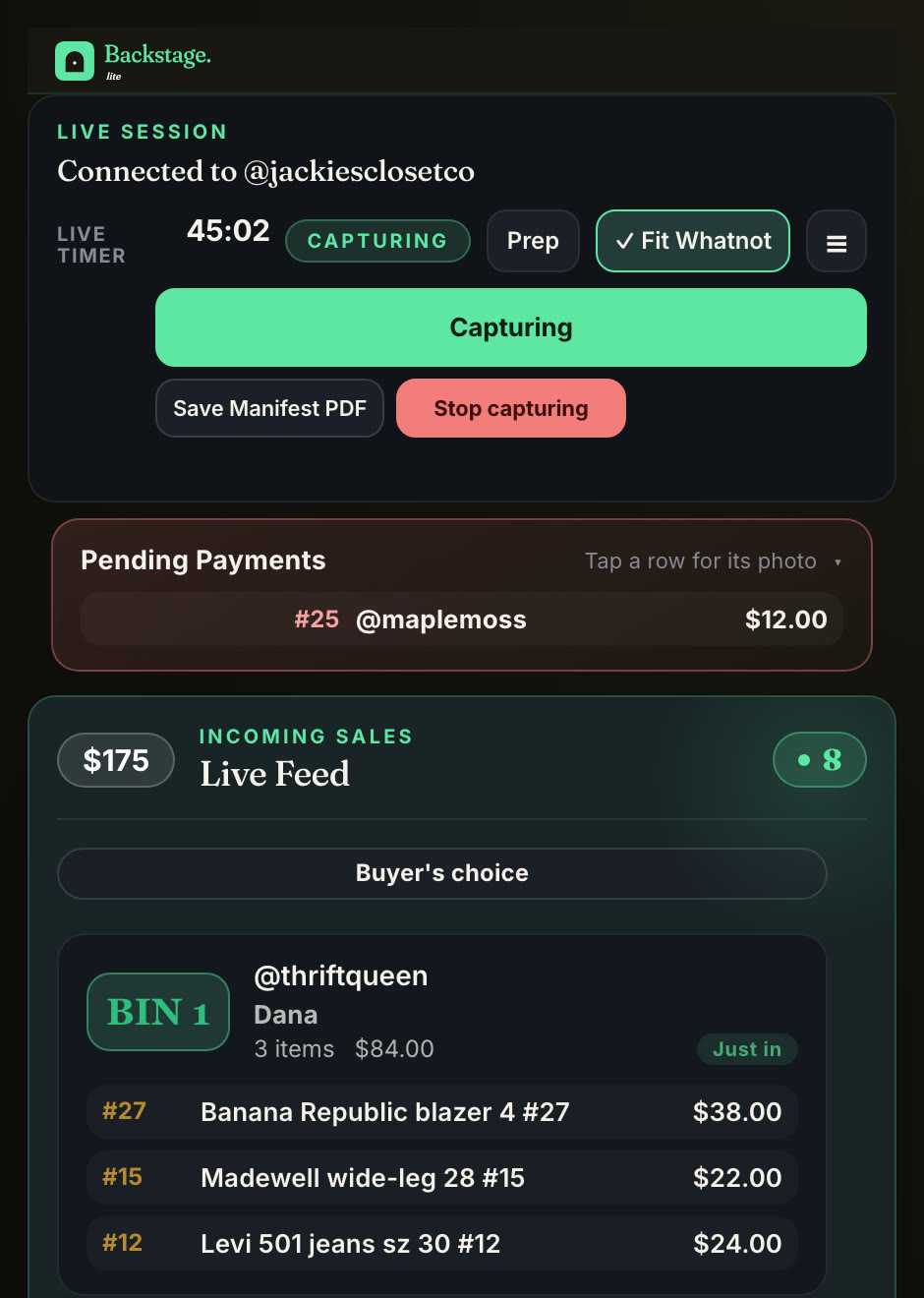
The fix sellers use is a bin system: every buyer gets a number on their first win, keeps it all show, and everything they win goes in that bin. You can run one with a marker and numbered cards. Here’s what sellers use, by what they sell:
- Clothing: a rolling clothes rack, or a heavy-duty double-rod rack for big shows. Split it into one section per buyer with reusable numbered hanger tags, 1 to 100, whose mirror-image side reads the right way on camera, or writable closet rack dividers.
- Cards: tiny waterproof number stickers, 1 to 2,000 and under an inch long, fit on sleeves and small bags.
- Jewelry and small pieces: small stackable bins, one per buyer, so nothing tiny goes missing, or clear hanging bags with hooks, 50 to a pack, that hang on a rack so each buyer’s small wins stay in sight.
- Bags, boxes and mixed lots: a roll of numbered stickers, 1 to 1,000, numbers your bins with no label printer at all, and a 25-cube wire storage organizer turns one wall into 25 numbered bins. A 25-pack of corrugated parts bins, or a 40-pack of open-top cardboard bins for bigger shows, gives you matching, cheap bins to line up on any shelf, and reusable mesh zipper bags hold a buyer’s toys, games or mixed wins and fold flat between shows. To number any bin or basket, a set of 50 clip-on bin labels comes with chalk markers, so you write the number and wipe it clean for the next show.
- Bulky or breakable items: tubs or deep 10 by 12 by 8 storage bins on a rolling wire shelving unit, one numbered spot per buyer.
What makes it fast is automating the bookkeeping:
Backstage rides along with your show and does that part for you:
- Every sale by name, the second it happens, with the item, the price and a screenshot.
- A bin for every buyer, assigned on their first win and kept all show. First-time buyers get a star.
- A label that prints as the item sells, with the bin number and the buyer, if you connect a label printer.
- What each item earned after Whatnot’s fees, not the hammer price.
- A thank-you list for raids, tips and giveaway winners, so nobody slips past.
- A packing manifest the moment you end the show, sorted by bin in pull order.
It runs in Chrome next to your show on a Mac or Windows computer, or as a native app on the iPad with no computer at all. See running a whole show from an iPad. If you stand to sell, a tall iPad floor stand with a gooseneck keeps the tablet at eye level beside you, so you can glance at the next sale without picking it up.
Label printers. Labels that print as items sell are on the Plus plan. On a Mac or Windows computer, Backstage prints to the label printer already installed there. On the iPad it pairs over Bluetooth inside the app. A 2 by 1 inch sticker is the classic bin label, and every printer below also prints Whatnot’s 4 by 6 shipping labels.
| Printer | Connects by | Use it with Backstage on | Good for |
|---|---|---|---|
| Rongta RP425, budget | Bluetooth | iPad, with built-in support, so it pairs right in the app | iPad sellers, and anyone starting out |
| Nelko PL70E, mid-range | Bluetooth | iPad and Chrome on a computer, both confirmed by a seller who prints with it | A second iPad option |
| Jadens JD-268BT, mid-range | Bluetooth or USB | Chrome on a Mac or Windows computer | The printer we run on a Mac |
| Rollo X1038, premium | USB | Chrome on a Mac or Windows computer | High-volume sellers who print all day |
| Munbyn RealWriter 941 with a shipping scale, bundle | USB | Chrome on a Mac or Windows computer | Getting the printer and the scale in one box |
Label rolls. Backstage prints eight sizes: 2 by 1, 2 by 2, 3 by 2, 3 by 3, 4 by 2, 4 by 3, 4 by 4 and 4 by 6. Pick the roll in the app’s label settings so it matches what’s loaded.
| Size | What it’s for | A roll that fits |
|---|---|---|
| 2 by 1 | The classic bin sticker: bin number and buyer | 2 by 1 thermal labels |
| 2 by 2 | A square bin label with more room for the number | 2 by 2 thermal labels |
| 3 by 2 | Bigger bin or item labels; Backstage prints across a 2 by 3 roll | 2 by 3 thermal labels |
| 4 by 6 | Whatnot’s shipping labels, and a bin label you can read across the room | 4 by 6 thermal labels, or a fan-fold stack |
The printer and label links above are affiliate links. More on setup in Whatnot label printing on iPad, Mac and Windows, and if you don’t own a printer yet, what you can skip.
Mods and chat
Whatnot lets you add moderators to a show, and mods use chat commands to announce, hide messages and keep things moving. The commands are in Whatnot mod commands, explained.
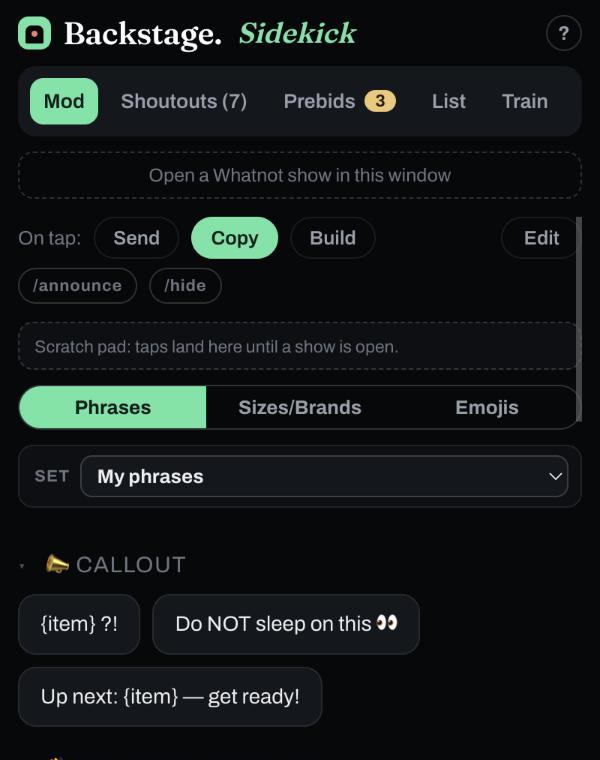
Backstage Sidekick is free for mods: one-tap chat phrases for welcomes, follow pushes and giveaway hype, and a list of everyone to thank for raids, tips and giveaway wins, so your mod never has to scroll back. It runs in Chrome and on iPhone and iPad.
Raid trains
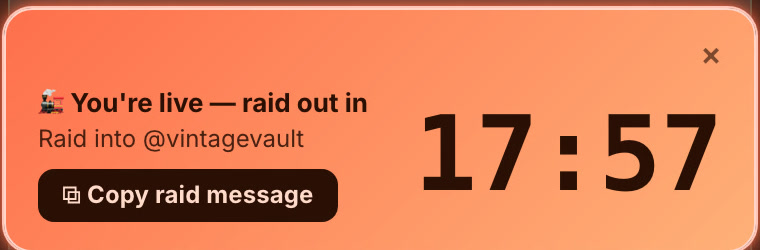
Raid trains are organized on Raid Train Express, where you can find a train to join or start your own, then raid into the next seller when your slot ends. Backstage partners with Raid Train Express. Questions about a train itself, like signing up, your slot, the lineup or the rules, go to Raid Train Express support. Our raid train guides cover how trains work and the etiquette that gets you invited back.
Shipping and packing
Whatnot handles postage. You generate labels on the Shipments page in Seller Hub, and on whatnot.com you can batch the whole show into one PDF. The buyer already paid shipping at checkout, so the label is paid for. Outside label services aren’t part of it: Whatnot only lets a few approved sellers use their own labels.
What you add is the physical side:
- A printer for shipping labels: a 4 by 6 thermal printer, or a regular printer with letter-size sheets.
- A scale. Your shipping profiles are the packed weight of each listing, and guessing is how sellers end up paying shipping adjustments. Light items like cards need a scale that reads to a tenth of an ounce, like the one in the printer-and-scale bundle. For heavy boxes and liquidation lots, a floor shipping scale weighs up to 440 pounds.
- Mailers, boxes and padding staged before the show. Clothing ships in poly mailers: a bulk pack of 12 by 15.5 inch poly mailers covers single pieces, and 19 by 24 inch poly mailers fit bundles and bulky pieces like hoodies and jackets. Jewelry and small pieces that need a little cushion go in bubble mailers, and bulky lots ship in 12 by 12 by 12 boxes.
- Card supplies, packed in order: each card goes in a penny sleeve and a toploader, a buyer’s cards go together in a resealable team bag, and the bag ships in a rigid card mailer, or a bubble mailer with a stiff insert, which a card shipping kit bundles together.
- A tape gun with refill rolls for boxes, so sealing each one is a single pull instead of a fight with the roll.
- A label roll holder (affiliate link) behind the printer, so a roll or a fan-fold stack of 4 by 6 labels feeds straight in instead of dragging.
- Bins that match your manifest, so packing is one pass down the row. The shipping speed guide has the full routine.
The money side of shipping, who pays and where it leaks, is in Whatnot shipping for sellers, explained.
The money: fees, payouts and taxes
- Seller Analytics on whatnot.com shows sales, earnings, buyers and show stats. Whatnot labels its earnings as estimates, updates them in one to two days, and only counts completed orders.
- Seller Statements are the monthly and annual summaries Whatnot says to use for taxes, along with your 1099 and the Ledger.
- What you keep after fees: our free Whatnot fee calculator works it out, and Backstage shows it per item during the show.
- When the money arrives: Whatnot payouts, explained, including Early Payout.
Consignment
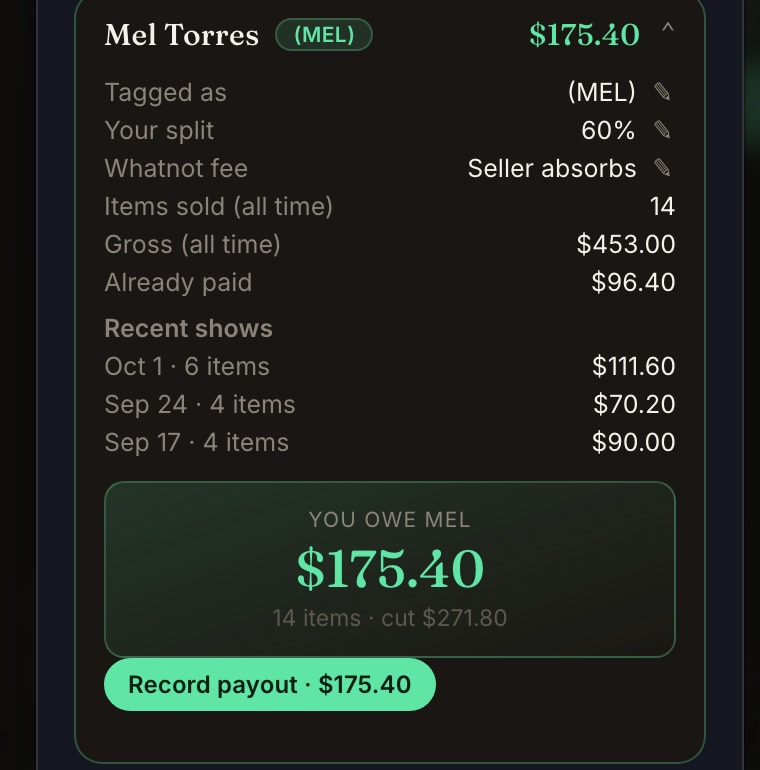
If you sell other people’s items, the hard part is the accounting: who owned what, what sold, and what you owe. Backstage tags each item to a consignor, splits each sale from what it really earned after fees, and gives every consignor a free web portal. Start with the best Whatnot consignment tracking tool or the split calculator.
A starter setup for each stage
| Stage | Add this | Why |
|---|---|---|
| First shows | Phone on a stand, one or two lights, Rehearsal Mode, numbered bins and a marker | Practice free, look decent, keep buyers’ items together |
| Selling every week | A second device, two-point lighting, a lav mic, a label printer, Backstage | Run the show hands-off, and end it already sorted |
| Big shows or a team | Bulk listing with Prep or CSV, a packer on the shared live board, mods with Sidekick, OBS if you want production | List in minutes, pack while you sell, keep chat moving |
The whole toolkit, by job
| Job | Free from Whatnot | Outside tools sellers use | Where Backstage helps |
|---|---|---|---|
| Camera | Your phone, Facecam, Camera Zoom | Phone stand or clamp; OBS for real cameras | |
| Light and sound | Two-point lights, lav mic | ||
| Practice | Rehearsal Mode, private shows | ||
| Listing | CSV import on whatnot.com | Google Sheets, image hosts, Canva for thumbnails | Prep builds the CSV from photos |
| Running the show | Show controls, sales feed | Every sale by name, bins, labels as items sell | |
| Mods and chat | Moderators and chat commands | Sidekick, free | |
| Raid trains | Raiding | Raid Train Express | Partner |
| Shipping labels | Shipments page | A label printer, a scale | Manifest sorted by bin |
| Money | Analytics, Statements, Ledger | Your bookkeeping | Net after fees per item, consignor splits |
Next steps
- See everything Backstage does: Whatnot seller tools.
- Set up one show, start to finish: how to set up a Whatnot live show.
- No laptop: run the whole show from an iPad.
- Try it: Backstage, with a 7-day free trial.