Whatnot Label Printing Software That Runs on iPad, Mac and Windows
Backstage prints a bin label the second an item sells on Whatnot, from a native iPad app or from Chrome on a Mac or Windows computer, on one plan. Each buyer gets a bin number on their first win and keeps it all show, so the sold pile is already sorted by buyer when you end the show.
If you sell on Whatnot, you already know the moment that costs you: an item sells, you grab a sticky note, you write a name, and the show stalls while you do it. Automatic label printing fixes that moment. Here is how it works, what it prints, and why Backstage is the one tool that does it on an iPad, a Mac, and a Windows computer under the same plan.
Two kinds of labels, and only one prints live
Whatnot sellers deal with two different labels, and it helps to keep them straight.
- Bin labels (also called sorting labels or ID labels) print live, the second an item sells. They carry the buyer’s bin number and username so you can stick the label on the item and drop it in the right bin without stopping to write anything.
- Shipping labels are the postage. Whatnot generates them from the Shipments page in Seller Hub, in bulk on whatnot.com or one at a time in the app. You print those when you pack.
Automatic label printing is about the first kind. The payoff shows up at the end of the night: your sold pile is already sorted by buyer, each bin is one order, and the manifest matches what is on the table. Packing becomes a batch job instead of a hunt.
What Backstage prints, and when
Backstage watches your show and prints as sales land:
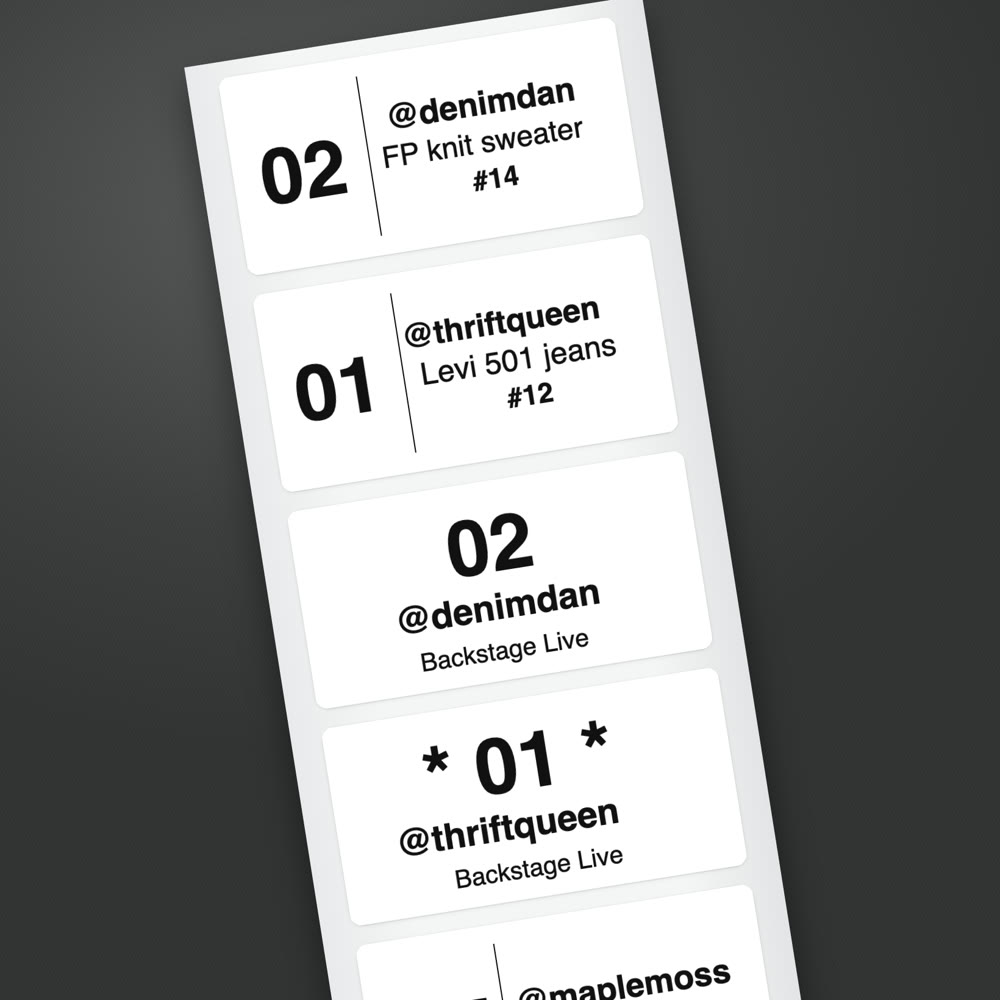
- A bin label the second an item sells. The buyer gets a bin number on their first win and keeps it for the whole show. The number prints big, with their @username under it.
- A star for a first-time buyer, so you can welcome them on air while they are still in the chat.
- A giveaway label when a giveaway is won, so the winner’s item is tagged like everything else.
- A pending label when a sale is waiting on payment, so that item does not get packed and shipped before the money clears.
- Item labels, if you want them, with the item title and lot number added, for sellers who tag every item and not just the bin.
Labels print on 2 by 1, 3 by 2 or 4 by 6 inch thermal stock, with 2 by 2, 3 by 3, 4 by 2, 4 by 3 and 4 by 4 also available on both apps. On Mac and Windows your own shop name can print on the bin label. Nothing on the label needs a computer to decode: a bin number and a username are all a packer needs.
Pick the device you already have
This is where Backstage is different from every other label tool for Whatnot. You choose the device, and the plan does not change. Printer and label links on this page are affiliate links: as an Amazon Associate, Backstage earns from qualifying purchases.
iPad or iPhone. Backstage Live for Whatnot is a native App Store app. It pairs with a Bluetooth thermal label printer and prints on the tablet itself, so there is no laptop to keep awake beside your show. Go live from your phone as usual; the iPad runs Backstage and prints the labels. It has printed from the iPad on the Jadens JD-268BT, the Nelko PL70E and the Rongta RP425.
Mac or Windows. Backstage Lite is a Chrome extension. With the Plus plan it prints through a small helper app called Backstage Print, using whatever label printer is already installed on that computer, such as a Rollo, Munbyn or Rongta. Install the helper, pick your printer and label size, print a test label, and turn auto-print on.
One plan, one login. Plus includes the iPad app, the desktop extension, label printing on both, and Prep for listing your show ahead of time. Run Tuesday’s show from the iPad and Thursday’s from the laptop; your settings and your shows travel with you.
Where Backstage sits next to the other options
| Desktop label apps | Whatnot’s own Sorting Labels (beta) | Backstage | |
|---|---|---|---|
| Prints a bin label the moment an item sells | Yes | Yes | Yes |
| Runs natively on iPad or iPhone | Rarely | No | Yes |
| Runs on Mac | Some | Yes | Yes |
| Runs on Windows | Most | Yes | Yes |
| Needs a computer kept running with the show open | Yes | Yes | Only on desktop; not on iPad |
| One subscription covers iPad and desktop | No | Not applicable | Yes |
| Bin number per buyer that lasts the whole show | Some | No | Yes |
| First-time buyer flagged on the label | Rarely | No | Yes |
| Pending-payment label | Rarely | No | Yes |
| Net earnings per item after Whatnot’s fees | No | No | Yes |
| Consignment splits and consignor payouts | No | No | Yes, on Pro |
| Available today | Yes | Selected pilot sellers only | Yes |
Whatnot’s built-in Sorting Labels are a real option if you are in the pilot and already run your show from a computer. They print the listing title and buyer username as items sell, on 2 by 1, 1 by 1, 2 by 3 or 4 by 6 inch labels, but they do not assign bin numbers and they need a computer with the show open on it for the whole show. Everything else on the market is a desktop program, a browser extension, or both, and each one stops at the label.
What happens after the last item sells
End the show and Backstage hands you a manifest that already lines up with your bins: every buyer, every item, the bin it went in, and what each item actually earned after Whatnot’s fees. If you sell for other people, the consignment tools on Pro split each sale to the right consignor from that same manifest. Then you head to Seller Hub for your shipping labels, and the packing is already done in your head because it is done on the table.
Setting it up
- Choose your device. iPad or iPhone for a computer-free setup, or Mac or Windows if you run your show from a desk.
- Get a thermal label printer and a roll of 2 by 1, 3 by 2 or 4 by 6 inch labels (other sizes work too; Backstage prints 3 by 2 across a 2 by 3 roll). If you do not have one yet, Backstage Lite’s PDF manifest and bin labels work on any printer while you decide.
- On iPad: install Backstage Live for Whatnot, pair your Bluetooth printer inside the app (not in the iPad’s Bluetooth settings), and print a test label.
- On Mac or Windows: install Backstage Lite from the Chrome Web Store, install the Backstage Print helper, pick your printer and label size, and print a test label.
- Turn on auto-print and go live. The first sale prints the first label.
Both start with a 7-day free trial. Plan details are on the pricing page.
Next steps
- Prefer to keep the laptop closed? Read the auto label printer and bin sorter that needs no computer.
- Already printing and want the show to end packed? Read how to ship Whatnot orders faster.
- Questions about a specific printer? Ask us and we will test it.
- What to buy, by job: the Whatnot seller toolkit, from label printers and bins to mailers and lights.