
How to ship Whatnot orders faster
The fastest way to ship Whatnot orders is to sort as you sell with a bin system, then batch-print your labels and pack assembly-line style. Backstage does the sorting for you: it captures every sale live, bins each buyer as they win, and hands you a packing manifest at End Show, so the show ends with orders already sorted and ready to label.
Shipping is where the profit quietly leaks out of a Whatnot business — not because packing is hard, but because of what happens after “End Show.” Seller Hub lists every order and groups them into shipments by buyer, so you already know who bought what. The slow, error-prone part is the other direction: finding each physical item in your pile and matching it back to the order list by whatever numbers or labels you gave it live — and hoping you numbered everything right. The fix is to tie each item to its buyer as it sells, which is what Backstage does during your show, so your pile already lines up with the orders. Here’s the workflow the fastest sellers use.
Why shipping feels slow: matching your pile to the manifest
The slow part of Whatnot shipping usually isn’t taping boxes — it’s the matching. Seller Hub lists every order, but your items are a physical pile tagged with whatever numbers or labels you assigned in the heat of a live sale. Now you have to find each one and match it back to its order, trusting you numbered everything correctly while you were also selling. One item mis-numbered and a buyer gets the wrong package. Closing that gap between your pile and the order list is the single biggest time sink — and the biggest source of shipping mistakes. Everything below is about eliminating it.
1. Use a bin system — sort as you sell
This is the number-one habit of fast shippers. Give each buyer their own bin (a tote, bag, or numbered slot). As each item sells, it goes straight into that buyer’s bin. When the show ends, every bin is already a complete order — nothing to reconstruct.
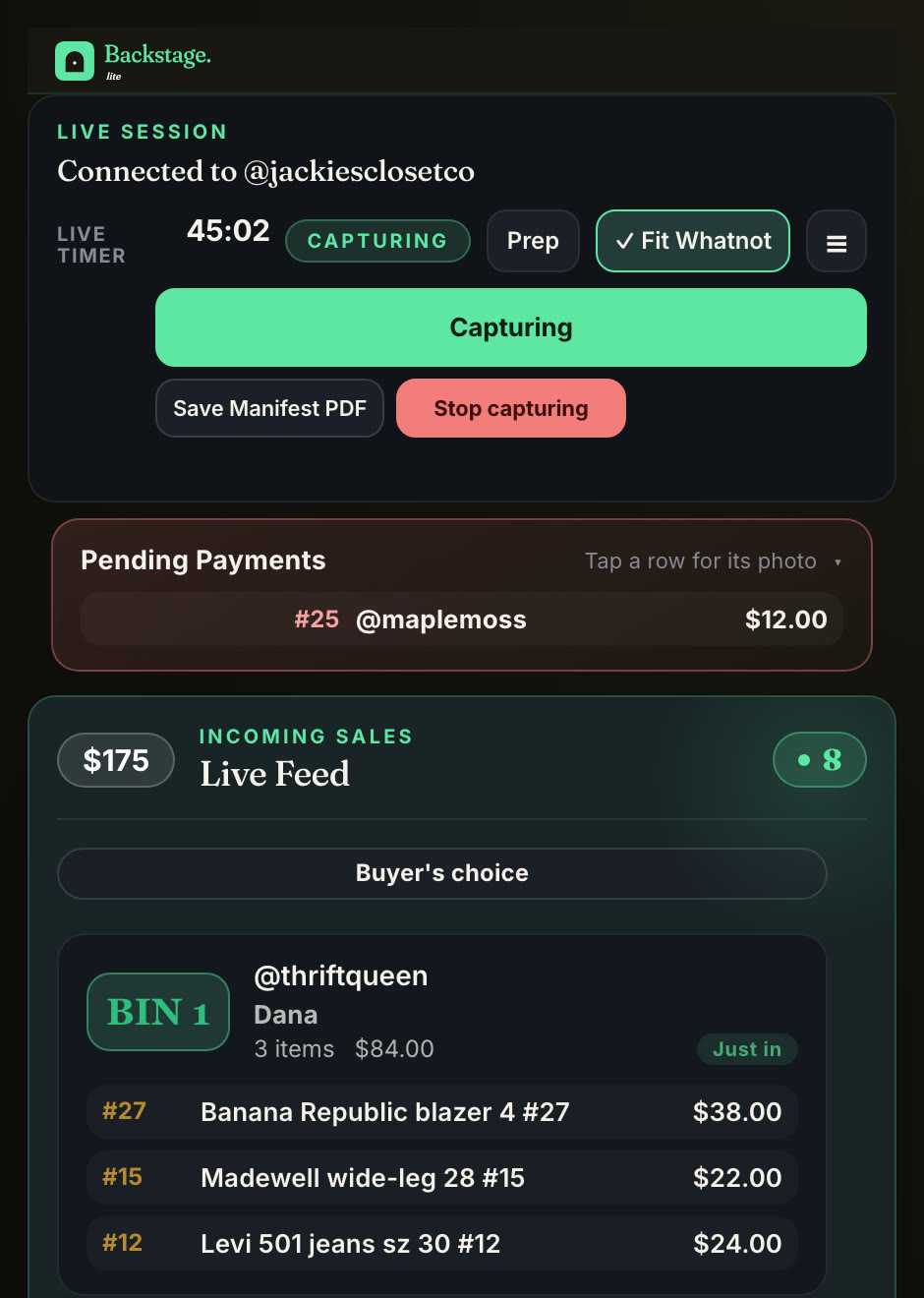
Most sellers do this by hand: they assign a bin number and call it out in chat as each item sells. It works, but tracking which bin belongs to whom while you’re also selling is the part that breaks down on a busy night.
2. Pack assembly-line style
Don’t pack one order start-to-finish before starting the next. Batch the steps instead:
- Sort everything into bins (done live, if you used a bin system).
- Pack every order.
- Label every order.
- Seal every order.
Doing one step across all orders is far faster than switching tasks for each package.
3. Print labels in batches — or automatically
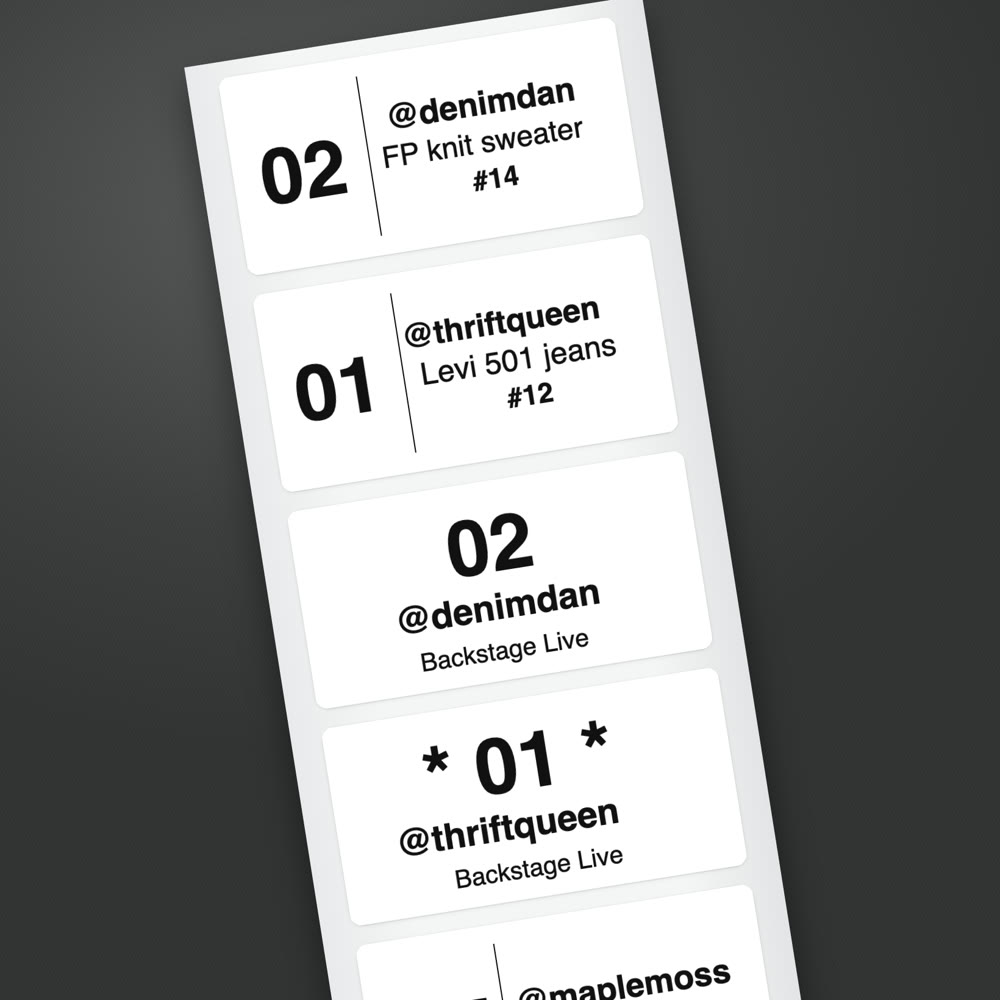
You can generate a Whatnot shipping label any time after a sale, but most sellers print the whole show’s labels in one batch when they pack. The speed-up is in how you print that batch. On whatnot.com, the Shipments page lets you filter to Needs Label, select all, generate the labels, and print them together as one PDF. The labels are already paid for, because the buyer paid shipping at checkout. What they paid came from each listing’s shipping profile, so profiles set to the real packed weight are what keep a label from costing you extra later. If a box ends up heavier than its listing said, shipping adjustments explains the free ones you get each week and what always costs money. Because your orders are already sorted and matched to your bins, that batch print-and-pack goes fast — and a tool can run the whole batch for you.
4. Pack from a manifest that matches your table
Whatnot’s Seller Hub knows who bought what. Your table is sorted by bin. A packing manifest is the piece in between: one list, grouped the way the pile is grouped, so you pack down the list instead of hunting.
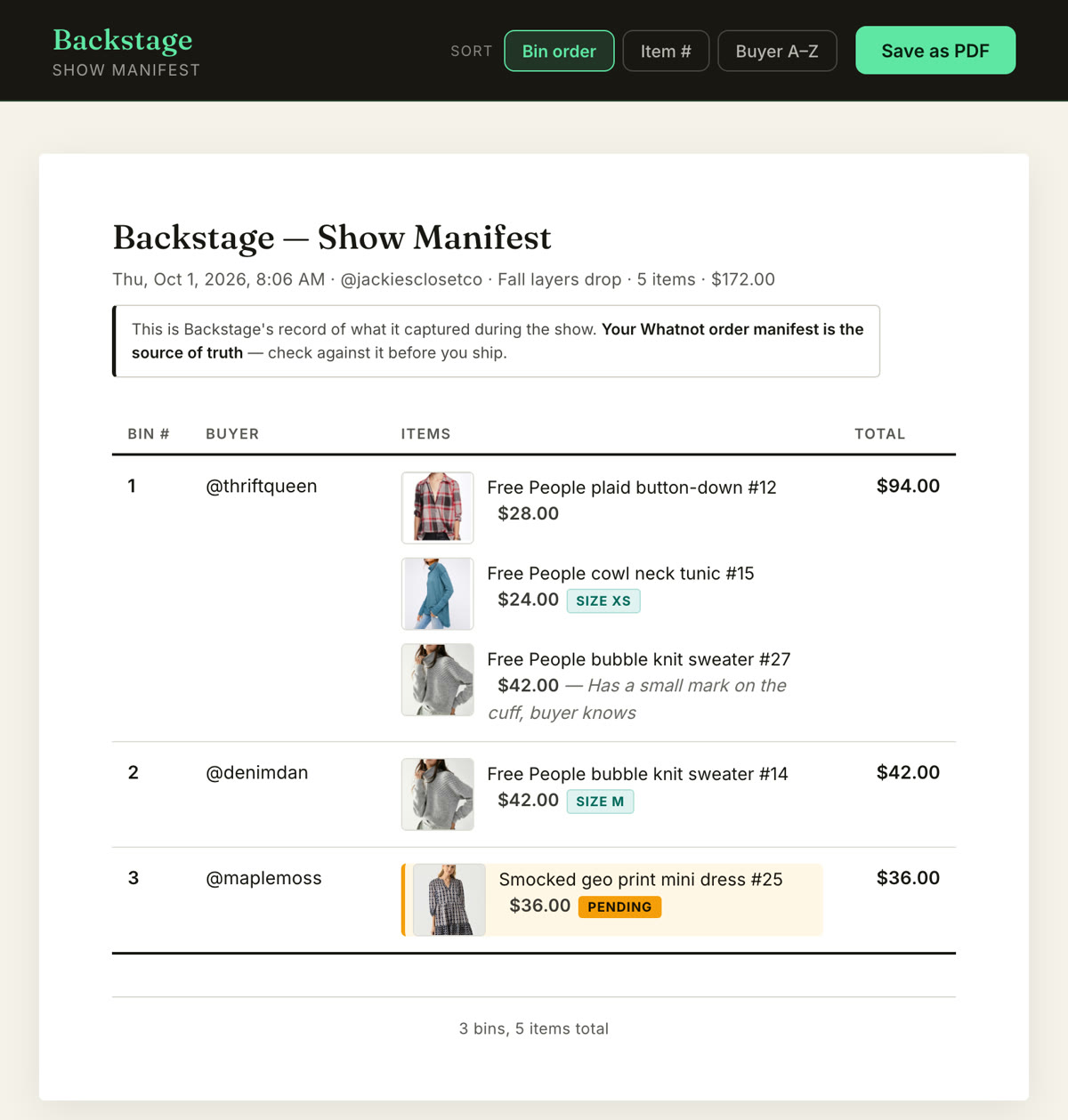
The one Backstage hands you at End Show has every buyer, every bin, every item, with totals, grouped by bin and sorted in pull order. Tips, raids and giveaway winners sit in their own sections so nothing you meant to thank or ship goes missing, a sale still waiting on payment is marked so it stays in the bin, and each item carries what it actually earned after Whatnot’s fees. Sort it alphabetically by buyer and it lines up with Seller Hub’s shipments view buyer by buyer, which is also Whatnot’s own advice for fast fulfillment. If Whatnot splits a buyer into two shipments, you will see both under their name. Print it or save it like a receipt.
5. Set up a dedicated shipping station
Small setup, big payoff: a table with supplies within arm’s reach, a tape dispenser mounted, a scale nearby, and boxes pre-staged. Pre-cut your bubble wrap before the show so you’re not measuring while you pack.
6. Let the bin system run itself
Here’s the leap. The bin system is the right idea — but doing it by hand (writing numbers on items, calling them in chat, then reconciling your pile against the order list afterward) is exactly the manual work that slows you down and causes mis-ships. Backstage automates it: as each item sells it tags it to the right buyer and prints its bin label — so you never stop to hand-write — and sorts each buyer into their own bin. When you hit End Show your items are already tagged, grouped by bin, and matched to Whatnot’s orders. No hand-writing, no number-matching, no hoping you labeled everything right, no pile to reconcile. Then after the show, head to whatnot.com’s Shipments page for your batch of shipping labels — with your pile already sorted and matched, packing is all that’s left.
- On a computer? Backstage Lite runs in Chrome next to your show.
- On an iPad? Backstage Live for Whatnot does the same natively, with no laptop.
The workflow is the same as a manual bin system — you just skip the part that used to eat your night.
The bottom line
Fast Whatnot shipping comes down to one principle: sort as you sell, don’t sort after. Use bins, pack assembly-line style, and batch or automate your labels. Do it by hand and you’ll shave hours; let Backstage bin your buyers automatically and the sorting disappears entirely.
Next steps
- Every job in one place: Whatnot seller tools, from sales capture and bins to labels and packing.
- What to buy, by job: the Whatnot seller toolkit, from label printers and bins to mailers and lights.
- How the numbering works: the Whatnot bin system.
- Labels that print as items sell: label printing on iPad, Mac and Windows.
- A buyer whose card declined: what to do with a pending payment.
- Buyers who bundle across the week: Weekly Bundling and holding a bin.
- Who pays, the rates, and where the money leaks: Whatnot shipping for sellers, explained.
- Set the weight once and stop overpaying: Whatnot shipping profiles explained.
- Changing a shipment after the sale: Whatnot shipping adjustments explained.
- See it work: Backstage Lite or Backstage Live for Whatnot.
- No computer? Auto label printing & bin sorting on iPad.
- Questions? We’re here.