
How to Set Up a Whatnot Live Show: Gear, Tools and a Show-Night Workflow
Everything a Whatnot seller needs to set up a live show: the gear, the tools, and the order to do things in, from scheduling the show to packing the last box. Written by a working Whatnot seller.
A Whatnot show is two jobs at once: selling on camera, and keeping track of who bought what so you can pack it afterward. The setup that works is the one that handles the second job while you’re doing the first. Here is the whole thing, from gear to the last box.
The gear
On camera
- A phone on a stand. This is your camera for the whole show. A stand or tripod keeps it steady and frees both hands.
- Light on your items. Buyers are judging condition through a phone screen. A ring light or a softbox aimed at where you hold items up makes the biggest difference for the least money.
- Your inventory within reach, in the order you plan to sell it.
Running the show
- A second device to control the show: another phone, a tablet or a computer. It’s optional, but it lets you run auctions, pin items and start giveaways without touching the camera.
Packing as you sell
- Numbered bins: totes, boxes, shelf slots, anything with a number on it. Each buyer gets one, and everything they win goes in it.
- A label printer and labels, so each item gets a label with its bin number and the buyer’s @username as it sells. A common size is the 2 by 1 inch bin sticker.
After the show
- A printer for shipping labels. Whatnot’s shipping labels come as 4 by 6 inch labels for a thermal printer, or letter-size sheets for a regular printer.
- Packing supplies and a scale. Whatnot’s shipping profiles are set by packaged weight, and a scale keeps you from guessing.
The tools
Whatnot gives you a lot built in. During the show, hosts see a feed of who won what and running sales totals, and you can add moderators who use chat commands like /announce and /hide. After the show, Seller Hub has every order and shipment.
What Whatnot doesn’t do is sort your table while you sell. That’s the gap a live-show tool fills:
| Job | Whatnot’s own tools | Backstage |
|---|---|---|
| Run the show: auctions, pins, giveaways | Yes | Not needed |
| See who won what, live | Yes, a feed by @username | Yes, plus a screenshot of each sale |
| Give each buyer a bin number | No | Yes, automatically |
| Print a label on each item as it sells | In beta for pilot sellers, from a computer | Yes, from Chrome or an iPad |
| Packing list sorted by bin | No | Yes, at End Show |
| What each item earned after fees, live | Running totals before fees | Yes, per sale |
| Thank-you list for raids, tips and giveaway winners | The activity feed | Yes, a checklist |
| Shipping labels | Yes, in Seller Hub | Not needed |
Backstage runs in Chrome beside your show, or as a native iPad app with no computer at all.
Before the show
- Schedule the show in Seller Hub, on the app or whatnot.com: name, date, time and a category. Your show only appears in the category you pick. A vertical thumbnail (Whatnot recommends 1080 by 1920 pixels) and show notes help buyers know what’s coming.
- Add your listings so buyers can browse and pre-bid. To list a batch at once, Backstage Prep builds the whole show and exports Whatnot’s CSV.
- Add moderators when you schedule, if you have them.
- Share your show link early so people can bookmark it and get the go-live alert.
- Set out your bins, load the label printer and run a test label.
- First show, or first time with two devices? Schedule a private show and practice with no audience.
Going live
- Start the show on your camera phone: Seller Hub, Shows, open the show, Start Show.
- Join from your second device, if you’re using one: open the same live show from your profile’s Shows tab. Turn its volume all the way down so it doesn’t echo into the camera’s microphone.
- Start Backstage so it catches every sale, giveaway and raid from the first minute.
During the show
- Pin the item you’re talking about. Viewers see it at the bottom of their screen and can bid or buy from there. Starting an auction pins it automatically.
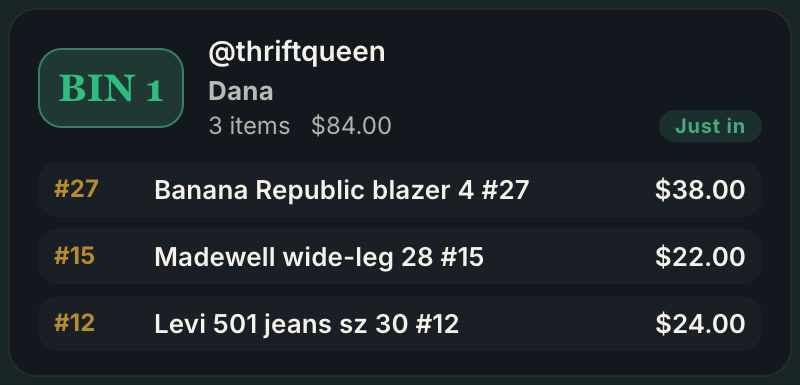
- Let the bins do the sorting. When someone wins, the label prints with their bin number, you stick it on and drop the item in the bin. Repeat buyers go back to the same bin.
- Run giveaways by Whatnot’s rules. Say what the prize is before you run it, don’t add your own entry requirements, and don’t use a randomizer wheel; Whatnot draws the winner. You pay the giveaway’s shipping, and it ships like any other order.
- Thank people while they’re still in the room. Raids, tips and giveaway winners come and go in seconds. A running thank-you list means nobody gets missed.
Ending the show
- End Show in Whatnot, or raid another seller, which ends your show and sends your viewers to theirs. Closing the app only pauses a show; end it on purpose.
- End Show in Backstage to get your packing manifest: every buyer, every bin, every item, sorted in pull order with a photo of each.
After the show
- Generate shipping labels on the Shipments page in Seller Hub. On whatnot.com you can do the whole show at once and print them as one PDF; the app does one at a time. The labels are already paid for, because buyers paid shipping at checkout.
- Pack bin by bin. Each bin is one buyer, so packing is a single pass down the row. Sort the manifest by buyer name and it lines up with Seller Hub’s shipments, buyer by buyer.
- Ship within two business days, giveaway items included.
The shipping guide goes deeper on packing fast, and the bin system guide covers how the numbering works.
Next steps
- Every job in one place: Whatnot seller tools.
- What to buy, by job: the Whatnot seller toolkit, from label printers and bins to mailers and lights.
- No laptop: run the whole show from an iPad.
- Labels as items sell: Whatnot label printing on iPad, Mac and Windows.
- Try it: Backstage, with a 7-day free trial.