
How to Run a Whatnot Show From an iPad: Phone for the Camera, iPad for Everything Else
Run a Whatnot show from an iPad with Backstage Live for Whatnot. Whatnot lets you host from two devices: one is the camera, the other controls the show. Put Backstage on the iPad and it becomes the whole backstage: pre-show listing prep, live capture of every sale, bins numbered as buyers win, labels printed to a Bluetooth printer, and a manifest with real net earnings when you end. Step by step, with no computer anywhere.
You can run a Whatnot show from an iPad with Backstage Live for Whatnot. Whatnot lets you host a show with two devices: one is the camera, the other runs the show. Many sellers already do the first half with a phone on a stand. The question is what the second device should be. If it is an iPad running Backstage, it is not just a controller; it is the whole backstage, and there is no laptop anywhere on the table.
Here is the setup, start to finish.
What Whatnot supports
Whatnot’s two-device hosting works like this: you start the show on your first device, which becomes the camera for the whole stream, then you open the same live show on a second device, which becomes the controller. Whatnot’s guidance is to run auctions, pin items and start giveaways from the controller so you never touch the camera. The second device can be any device that runs the Whatnot app or whatnot.com, and Whatnot’s own tip is to turn its volume all the way down so it does not echo into your microphone.
An iPad is the natural controller. With Backstage on it, the controller also does the packing-room work while you sell.
Before the show
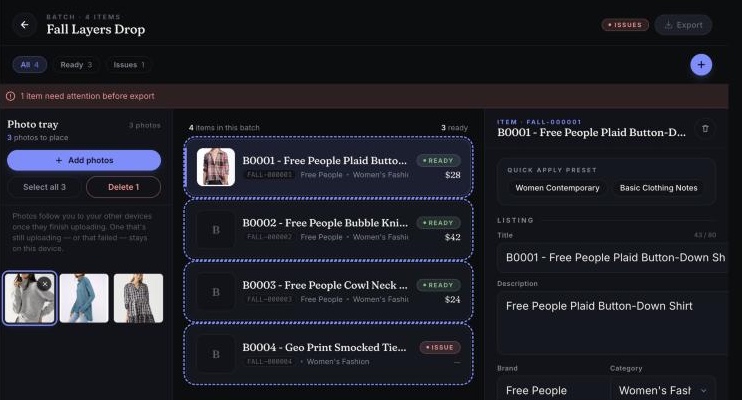
Prep your listings on the iPad. Backstage Prep lives inside the same app. Draft a whole batch of listings with photos, categories, conditions and shipping profiles, and push them to Whatnot in a single CSV that matches Whatnot’s own template. Sellers who list on the fly with random pulls can skip this.
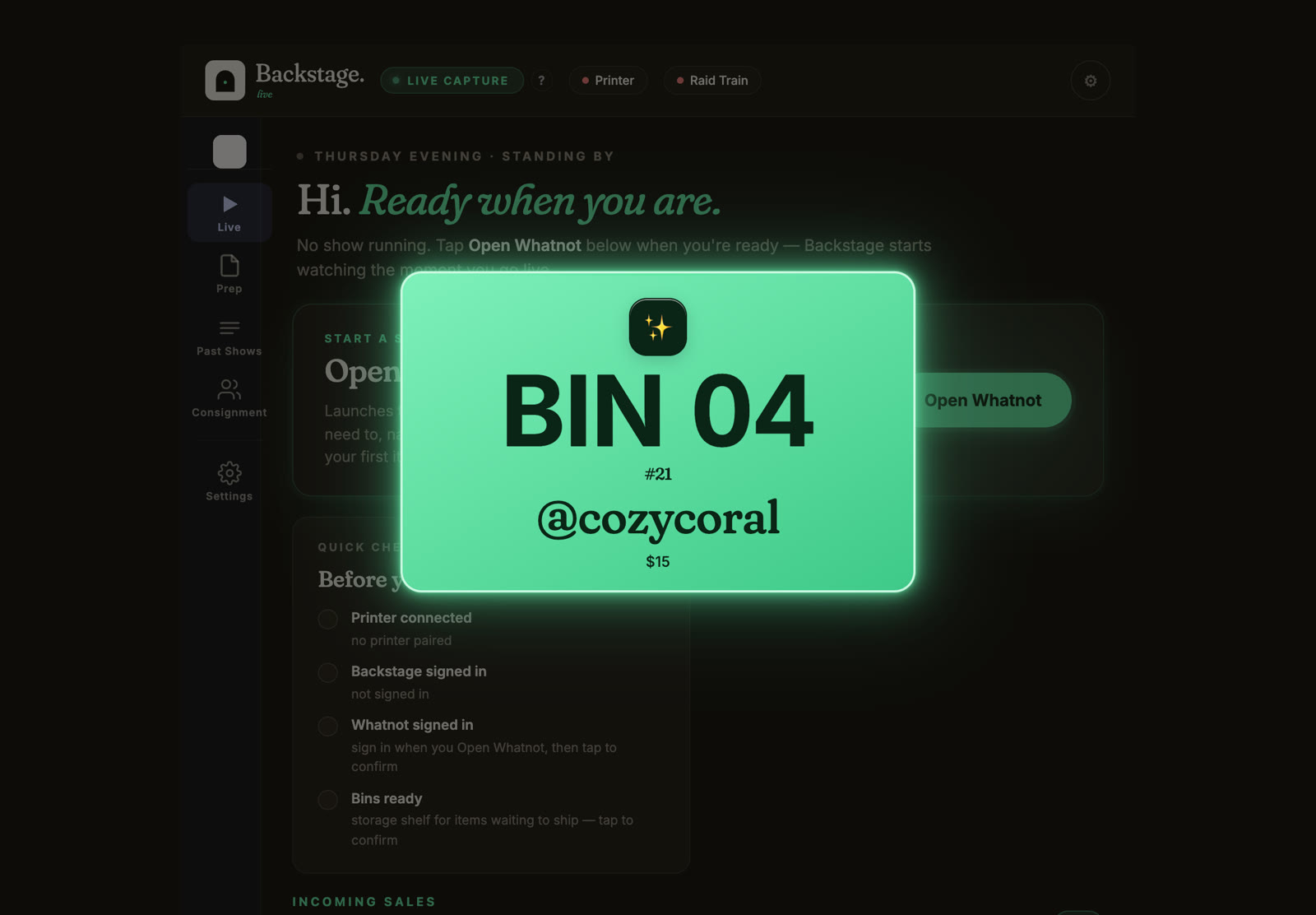
Run the Quick check. Open Backstage and look at the card headed “Before you go live.” It shows four lines: printer connected, Backstage signed in, Whatnot signed in, and bins ready. The last two wait for your tap rather than guessing. Clear all four and you are ready.
Set up bins. A bin is wherever a buyer’s things go while you sell: a numbered tote, a slot on the rack, a shelf, a sticky note on a pile. Backstage gives each buyer a number on their first win and every later win lands in the same bin. The bin system guide has the details.
Going live
- Start the show on your phone. Open Whatnot on the phone, go to Seller Hub, open the show and start it. The phone is now the camera. Put it on the stand.
- Open the show on the iPad. In Backstage, tap Open Whatnot. Your show runs inside the app. Open the live show, and you are joined as the second device, controlling the show from the tablet.
- Tap Start show in Backstage. From here it rides along and catches every sale, giveaway and raid the second it happens.
- Turn the iPad’s volume down. Whatnot’s own tip for two devices, so the tablet’s audio does not feed back into your phone’s microphone.
During the show
- Every sale lands on the iPad with the buyer’s name, the item, the price and, on most sales, a screenshot. The sales tracker guide lists everything recorded on each one.
- Each buyer gets a bin number on their first win and keeps it. First-time buyers get a star so you can welcome them. Pending payments are flagged so nothing ships early.
- Labels print from the tablet if you paired a Bluetooth printer. Set Auto-print labels to Bin only for one label as each buyer’s bin opens, or Every sale for that plus a label per item. No helper app, no laptop.
- Giveaway winners, raids and tips each become a card, so you thank the right person by name while they are still in the chat. The giveaway and raid tracker guide covers what happens to each.
- A packer can follow along on the live board you share by link, on any device, with no login.
Ending the show
Tap End Show and Save Manifest. Backstage confirms, warns that it will clear the bins and items for the next show, and saves the manifest: every buyer, every bin, every item, with totals. The show lands in your portal recap with real net after Whatnot’s fees, gross, and item counts. Then raid out from the phone as usual, and go to Seller Hub for your shipping labels when you pack. If shipping on Whatnot is new to you, Whatnot shipping for sellers covers who pays and what it costs.
If you sell for other people, the consignment tools on Pro split each sale to the right consignor from that same show, on the same iPad.
What you need
- An iPhone on a stand, for the camera.
- An iPad on iPadOS 16 or newer, or an iPhone, for Backstage. Older A-series iPads from the 8th generation up run it comfortably.
- Backstage Live for Whatnot from the App Store, on the Plus plan, with a 7-day free trial.
- Optional: a Bluetooth thermal label printer and labels: 2 by 1 is the classic bin sticker, and 3 by 2, 4 by 6 and five other sizes are available. Backstage has printed from the iPad on the Jadens JD-268BT, Nelko PL70E and Rongta RP425. (Affiliate links: as an Amazon Associate, Backstage earns from qualifying purchases.)
Next steps
- Every job in one place: Whatnot seller tools, from sales capture and bins to labels and packing.
- What to buy, by job: the Whatnot seller toolkit, from label printers and bins to mailers and lights.
- Labels without a computer: the Whatnot auto label printer and bin sorter.
- The two-minute first show: iPad quickstart.
- Get the app: Backstage Live for Whatnot.