Prep templates: fill items in with a tap
Save the fields you type on every listing once.
Prep
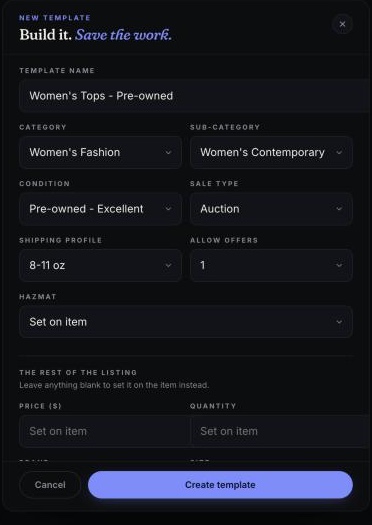
A template holds the fields that are the same across a type of item: category, sub-category, condition, sale type, shipping, offers.
Make one
- On Prep's home screen, tap Templates, then New template.
- Name it ("Women's Tops - Pre-owned"). Pick the category first; that unlocks sub-category and condition.
- Leave anything that changes per item as Set on item (price, brand and size usually).
- Tap Create template.
Use it
- One item: open the item, and under Quick apply preset, tap the template.
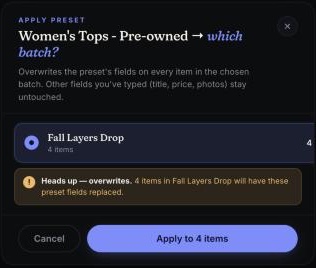
- A whole batch: on Templates, tap Apply…, pick the batch.
Applying to a batch overwrites those fields on every item. Titles, prices and photos aren't touched.