
Labels come out sideways, cut off, garbled or several to a page
Nearly always the label size setting, or the printer needs to re-learn the roll.
Step 1: match the label size to the roll
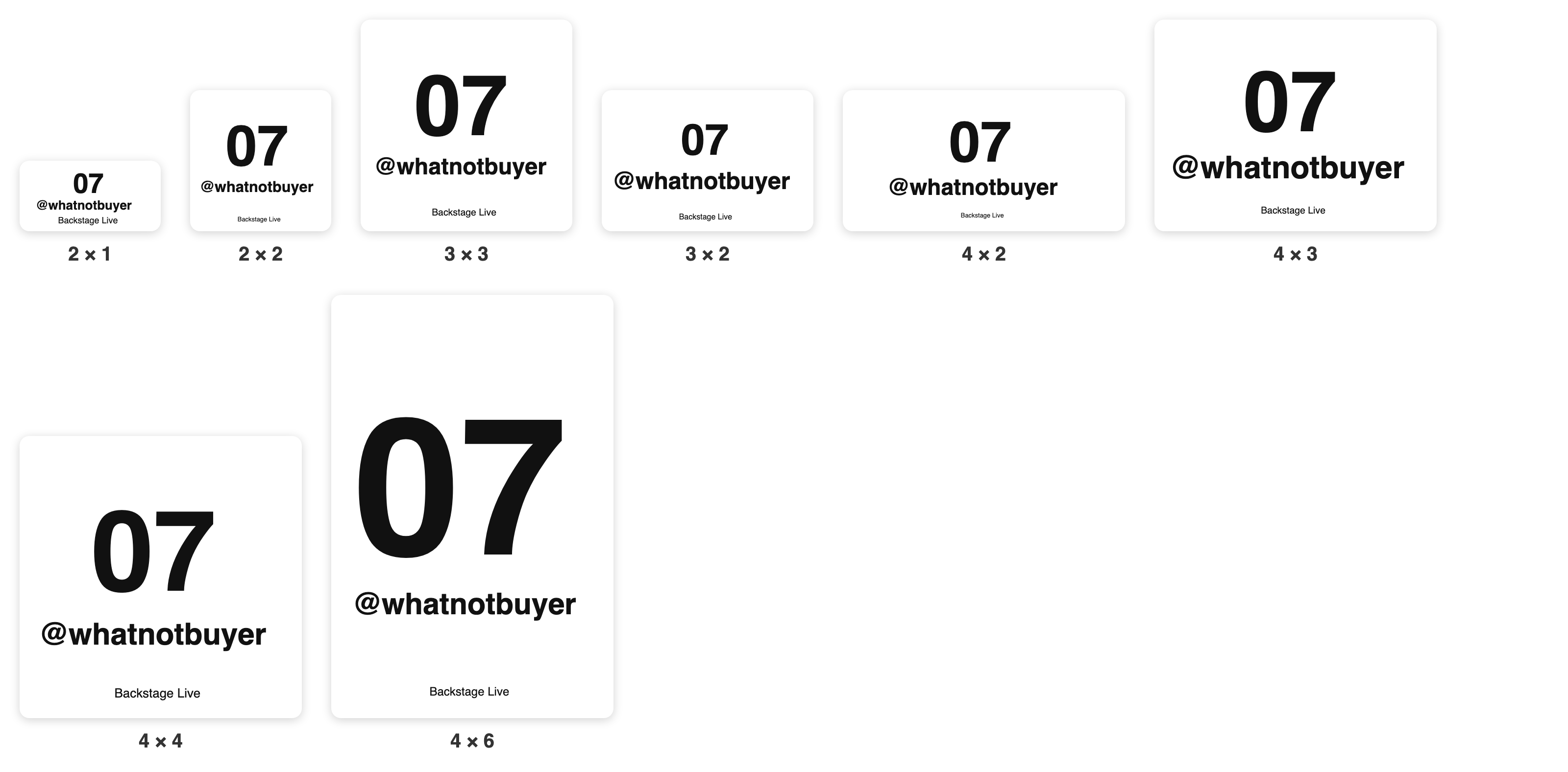
Set Label size to the labels actually loaded in your printer. This fixes most problems: labels that are cut off, skipped, squashed, or printed several to a page.
Step 2: let the printer re-learn the roll
Hold the printer's FEED button until a label or two runs through. That's how it learns where each label starts. Then do a test print.
Still sideways or upside down? (Chrome)
Menu ☰ › Print:
- Sticker shape: pick Wide or Tall to match how your sticker sits.
- Labels coming out turned? (Windows only) Pick an option, press Test print, and try the next one if it's still not right. Try Stop Windows turning them first.
Cut off or extra blank space? (Chrome)
Turn on My labels are cut off or don't fill the sticker, then test print.
Garbled, blank, or full of odd characters? (iPad)
Settings › Printer › More printer options › Which printer is this? It prints a few test labels. Pick the one you can read.
Using one of the newer sizes on a computer (2×2, 3×3, 4×2, 4×3 or 4×4)? You need the latest print helper. When yours is out of date, the Print settings say Print helper update available: tap Download the helper and install it. Don't see that? Email [email protected].