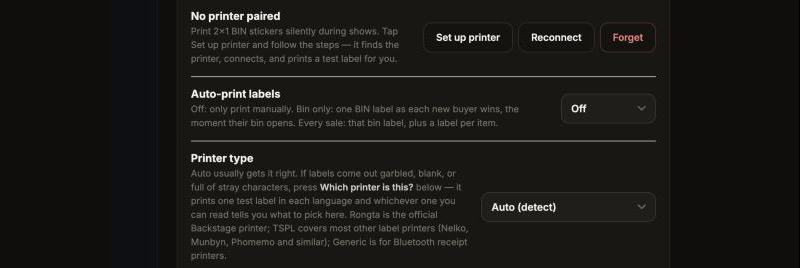
Set up your printer on iPad
Settings › Printer › Set up printer finds it and prints a test label.
Most sellers use a Bluetooth thermal label printer. Rongta is the one we officially support; most others (Nelko, Munbyn, Phomemo and similar) can work too. The iPad can also print to a Brother QL or a Rollo on your Wi-Fi: see Wi-Fi printers below.
Don't pair the printer in your iPad's Bluetooth settings. Backstage has to find it itself. Already paired it? iPad Settings › Bluetooth › tap ⓘ next to the printer › Forget This Device.
- Turn the printer on, load labels, close the lid, and put it next to the iPad.
- In Backstage, open Settings › Printer and tap Set up printer.
- If the iPad asks whether Backstage can use Bluetooth, tap Allow.
- Backstage finds your printer. If it isn't listed, tap Show other devices and tap its name.
- It prints a test label. Anything readable counts: tap Yes, it printed.
Nothing came out? Tap No, nothing came out. Backstage prints a few more test labels. Pick the one you can read.
Turn on auto-print
Auto-print starts off. Once your printer is set up, go to Settings › Printer › Auto-print labels and pick Bin only (what most sellers want) or Every sale. To check it, tap Test BIN or Test item.
Wi-Fi printers: Brother QL and Rollo
On the Looking for your printer screen:
- Brother QL label printer (like the QL-820NWB): tap Brother printer on Wi-Fi? Search Wi-Fi. The printer must be on the same Wi-Fi as the iPad. Not found? Type its IP address (it's on the printer's network settings printout) and tap Connect. Use genuine Brother DK rolls.
- Rollo or another AirPrint label printer: tap Rollo or other AirPrint printer? Choose printer and pick it once from the iPad's printer list. Labels print at the size of the roll that's loaded.
The first time, the iPad asks to let Backstage find devices on your local network: tap Allow. Said no? iPad Settings › Privacy & Security › Local Network › turn on Backstage.
A Brother QL roll is too narrow for 4×6 shipping labels, so the 4×6 packing slips from Past Shows won't print on it. Bin and item labels print as usual.