
Move sales to a consignor after a show
Put any sale on the right consignor, one at a time or many at once, from your computer.
Forgot a tag, or a sale went to the wrong person? You can fix it after the show, on any show, from your computer.
Open the show
- Sign in at backstagelive.app and go to Shows.
- Open the show and choose the Consignors tab.
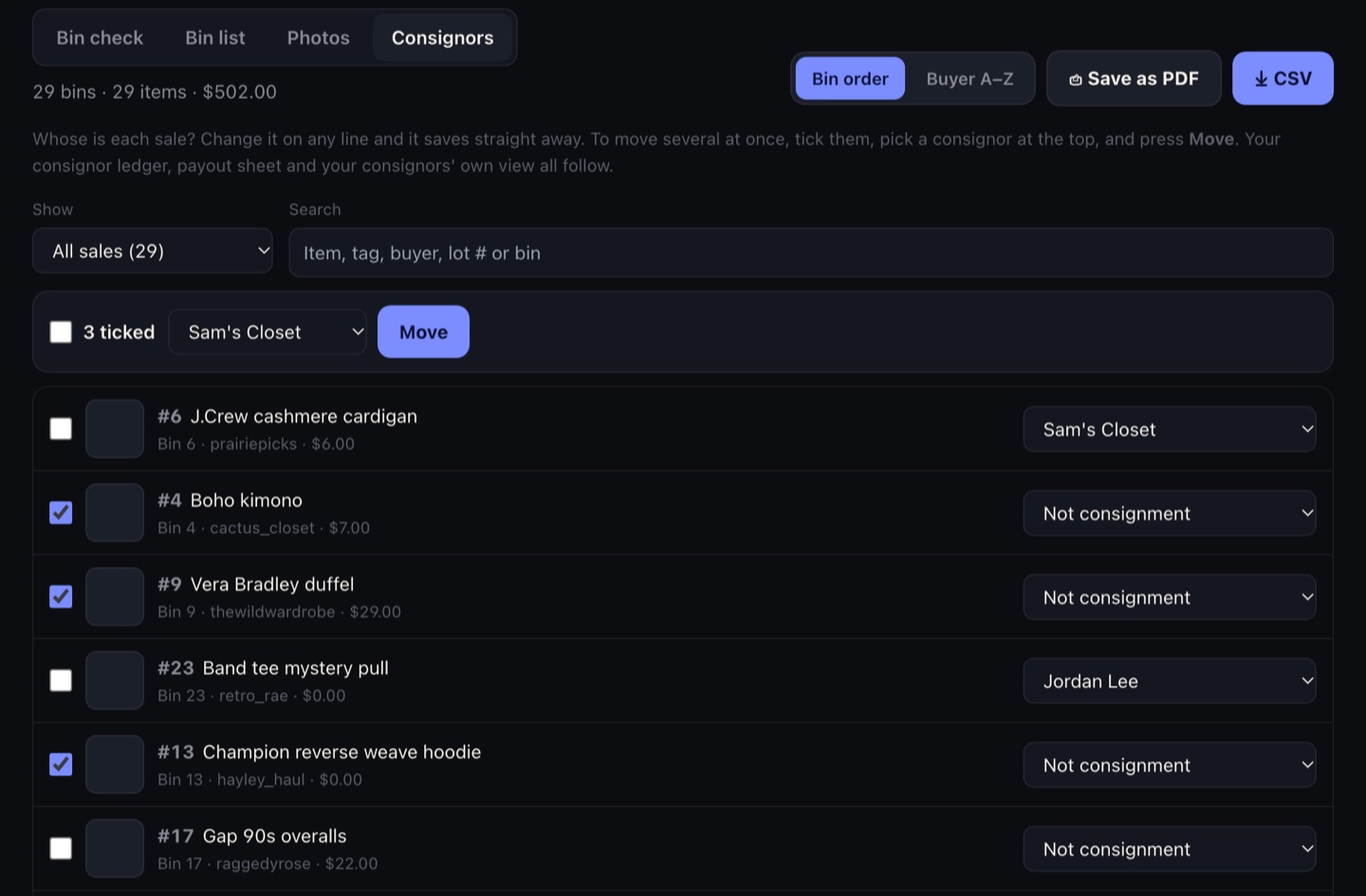
Every sale from that show is listed with its lot number, item, bin, buyer, price and photo, and a menu saying whose it is.
Move one sale
Change the menu on the right of the sale to the right consignor, or to Not consignment to take it off everyone. It saves straight away.
Move several at once
- Tick the sales. To narrow the list first, use Show (for example, only sales that aren't consigned) or Search (an item, tag, buyer, lot number like #23, or bin 7), then tick Tick all shown.
- Pick the consignor in Move ticked to.
- Press Move and confirm.
What happens next
Their cut is worked out from your split with them, and the sale shows up on your Consignors ledger, your payout sheet and in your consignor's own view.
Already paid that consignor since the sale? Moving it changes what you owe them, so Backstage asks before it saves.
On your Consignors page, each show also has a Fix sales in this show link that opens this list.
During the show
In Chrome, open My consignors. On the iPad, open the Consign tab. Then tap Fix a sale, search the item or buyer, and pick the consignor. These only reach the show you're on or your last one, so use the website for anything older.
Photos stay for 14 days after a show (30 days for consignment sales). After that, the photo square is empty but everything else is still there.