Put inventory into a show
Pull items from your stock room into a show's batch with what's left.
PrepWeb portal
- Open the show's batch in Prep (or start a new one).
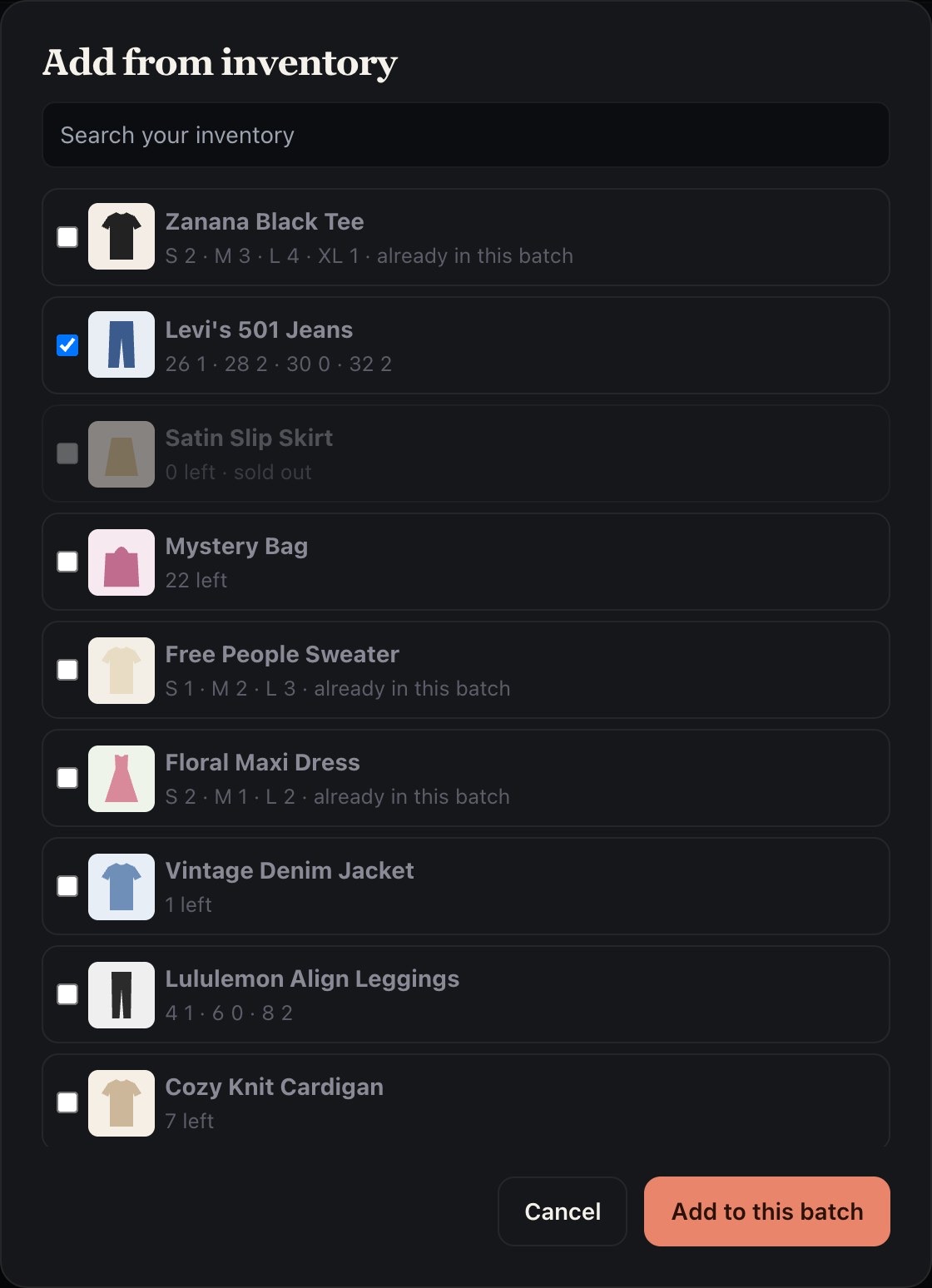
- Tap + Add from inventory (in Chrome and on the iPad it says + From inventory).
- Tick the items you're putting up. Each one shows what's left; sold-out items can't be ticked. Search if the list is long.
- Tap Add to this batch.
Each item comes in as a listing in this show, with its own item code, the sizes you still have and their counts. Change how many of each size to put up in this show if you're holding some back.
Cost, bulk purchase and location stay on the stock item, so you only enter them once. When the listing sells, it comes off the stock item's count.
Upload the batch as usual: Export, then upload the file in Whatnot Seller Hub.