
Set up Inventory and add what things cost
One place for everything you have, with its cost, sizes and where it lives.
PrepWeb portal
Inventory lives in Prep. Your stock room is a batch called Inventory that holds everything you have. It never uploads to Whatnot on its own; you pull items from it into each show's batch.
- Open Prep in your portal and tap Set up Inventory. You only do this once.
- Add your items the same way you add any Prep item: + Add item, a title and a photo.
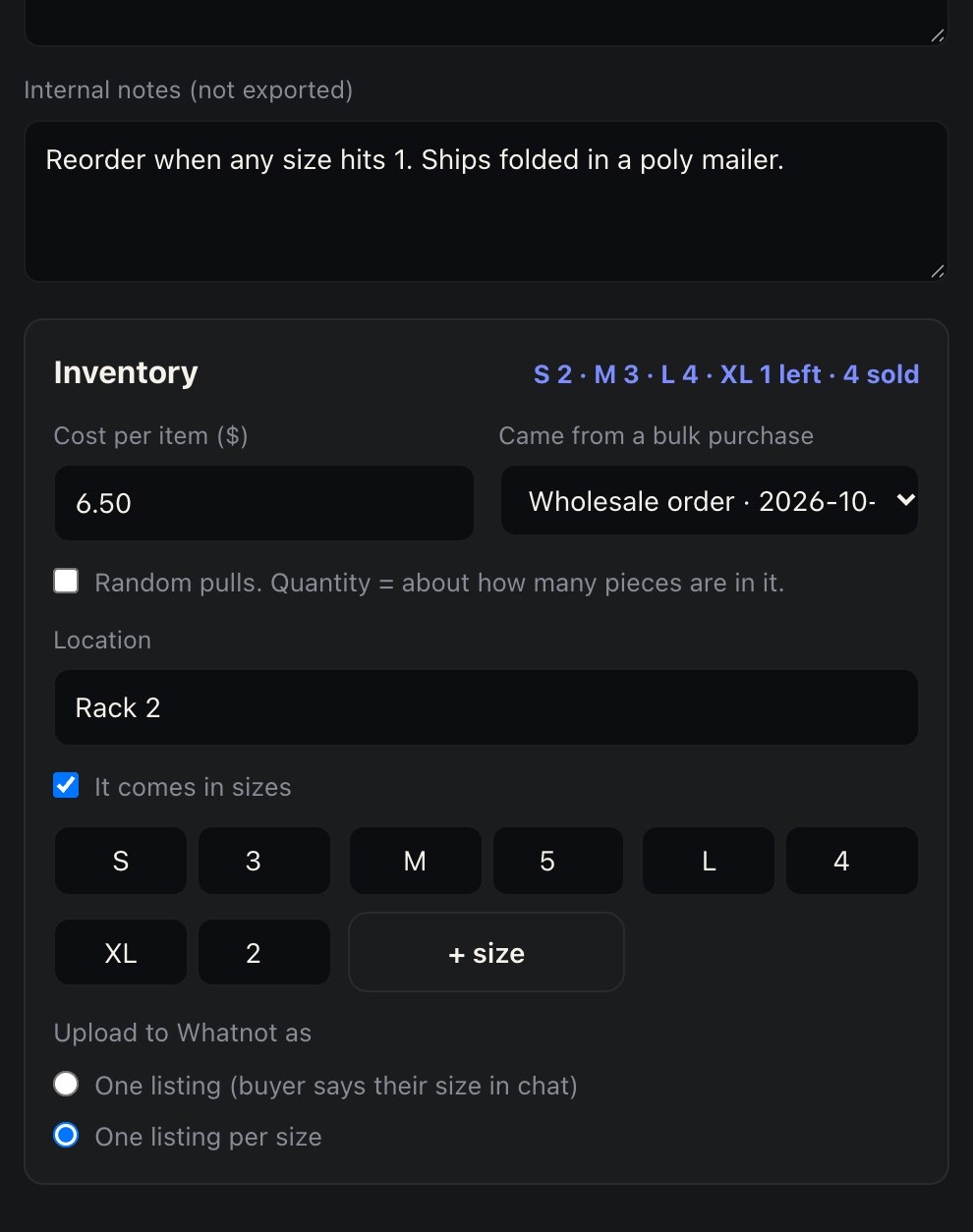
- Open an item and fill in its Inventory section:
- Cost per item: what you paid for one.
- Came from a bulk purchase: bought a lot at once? Pick + Log a bulk purchase, enter the store, what you paid and about how many pieces. Backstage works out your cost per piece and fills it in if the item doesn't have a cost yet.
- Random pulls: tick it for pieces you sell as random pulls, and set the quantity to about how many you have.
- Location: where it's kept, like "Closet rack 2".
- It comes in sizes: tick it and enter how many of each size you have.
Don't know what something cost? Leave it blank. It shows as "No cost yet" instead of counting as free, and you can add it any time.
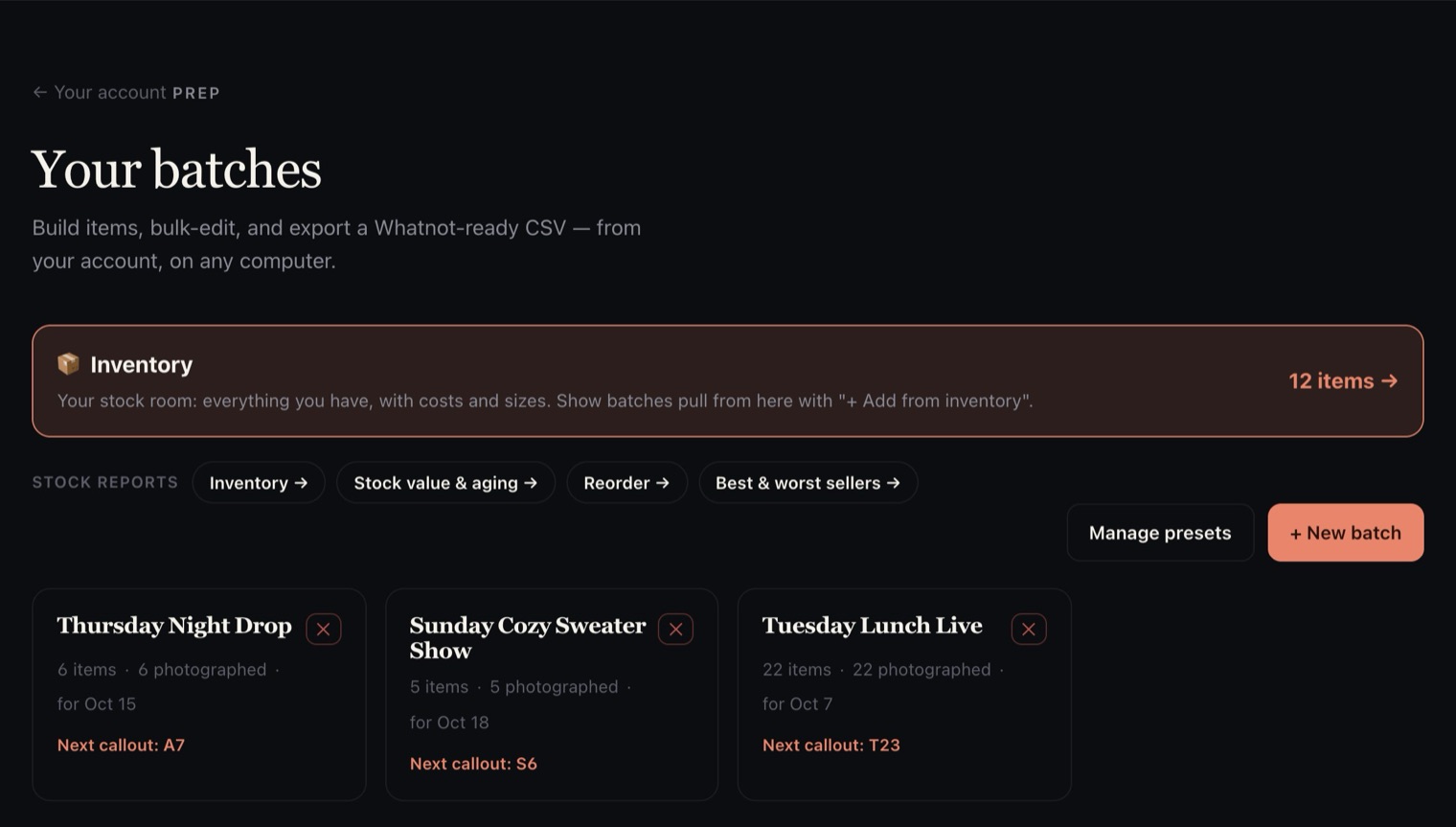
Inventory is in Prep in your portal, in Chrome and on the iPad. It isn't on every plan: if you don't see Set up Inventory (or the 📦 Inventory card) in Prep, email [email protected] and we'll tell you how to get it.